How to set up your store branding on Vendroad
Your store branding is what makes your shop visually recognizable. This includes your logo, brand colors, and how your store looks to customers. A consistent brand builds trust and makes your store more memorable.
Step 1: Go to Store Branding
From your dashboard, navigate to Settings > Store Info > Brand. If you just signed up, this will be step 2 of your onboarding flow.
Step 2: Upload your logo
Your logo appears at the top of your storefront and on your store's browser tab.
- Click Upload logo and select an image from your device
- Recommended format: PNG or JPG
- A square or landscape logo works best

Step 3: Upload a cover image
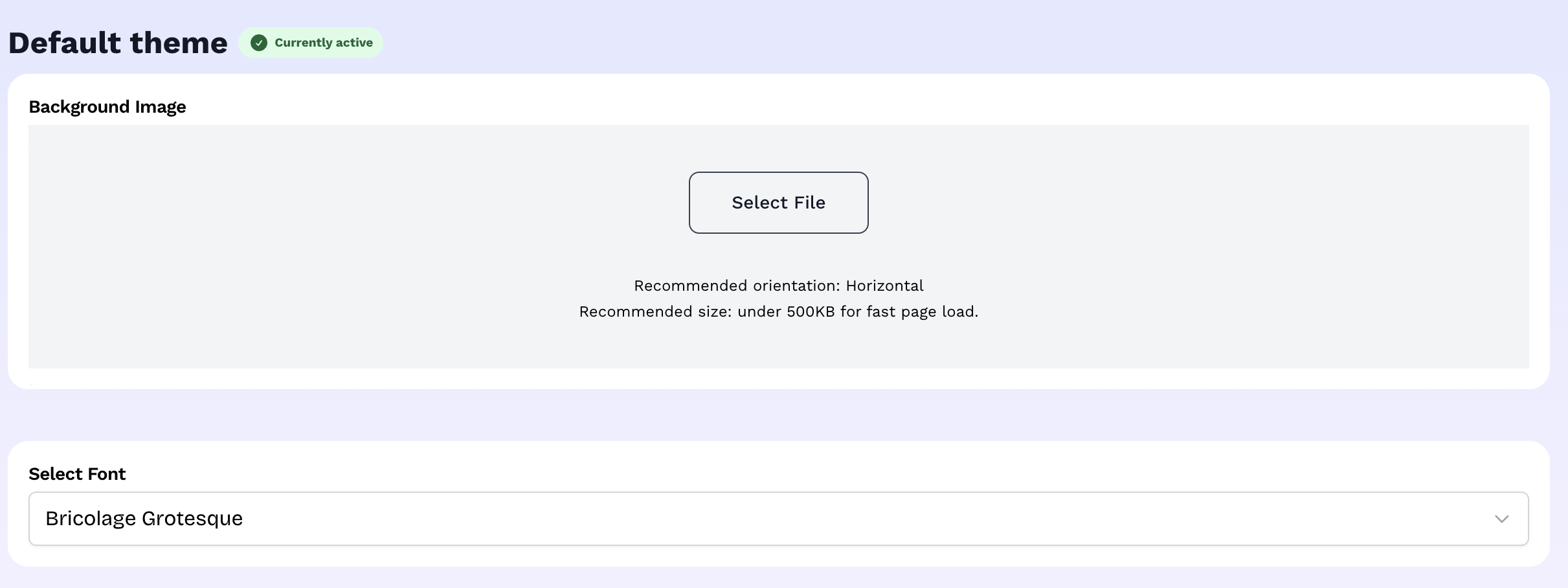
Some themes display a cover or banner image on your homepage. When you first signup, your store is assigned to the Default theme. You can change the banner image from Store settings > Store design > Default theme. This is a great place to showcase your products or communicate your brand's personality.
- Use a high-quality image. Based on the theme you choose, you will see a recommendation for the image orientation that works best, whether landscape or square.
- Avoid text-heavy images as they may be cropped on mobile
Step 4: Set your brand colors
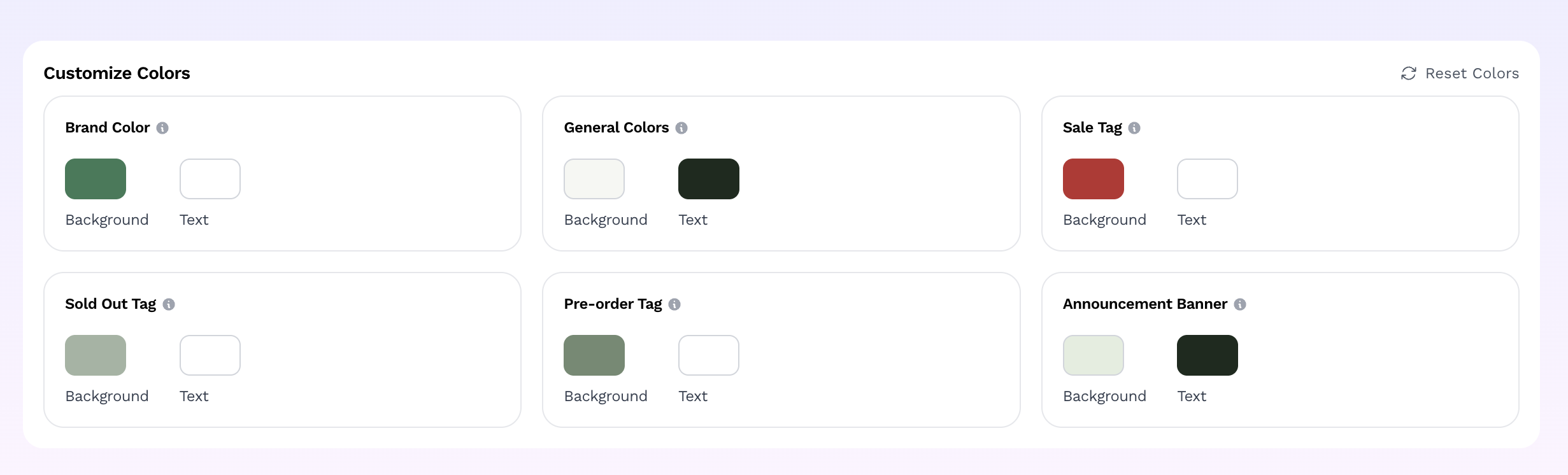
Your brand colors are applied across your storefront — buttons, highlights, and accents.
- Brand color: used for call-to-action buttons like "Add to cart" and "Buy now"
- Text color: controls the color of text on colored backgrounds
Other colors are also needed in your store color palette. The default is used out of the box, but you can change colors by clicking the color swatch to open the color picker and enter a hex code or choose from the palette.
Step 5: Add your About Us
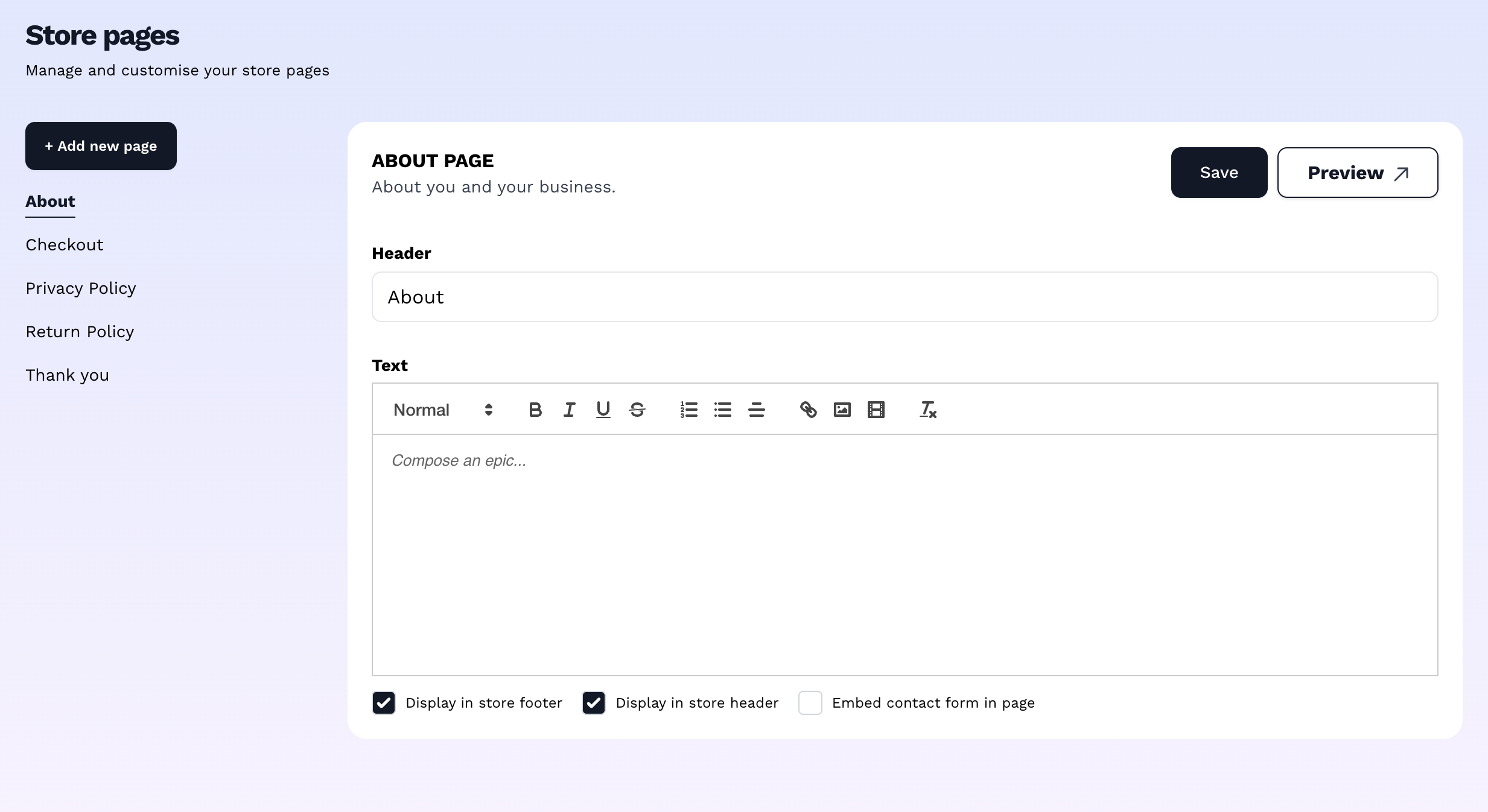
To add your brand story, visit store settings > store pages > about. You will find an open text editor to add text, images, or even drop a youtube video link. Use this section to tell your story and connect with customers. The content will be displayed in your header, footer and navigation.
Tips for great branding
- Use the same colors from your logo as your brand colors for consistency
- Add an image to your "About us" page - helps to humanize your brand
- Test how your branding looks by visiting your store link after saving
What's next? With your branding in place, it's time to choose the look and feel of your store. → How to choose and customize your store theme