How to Add Product Variants On Vendroad (with Examples)
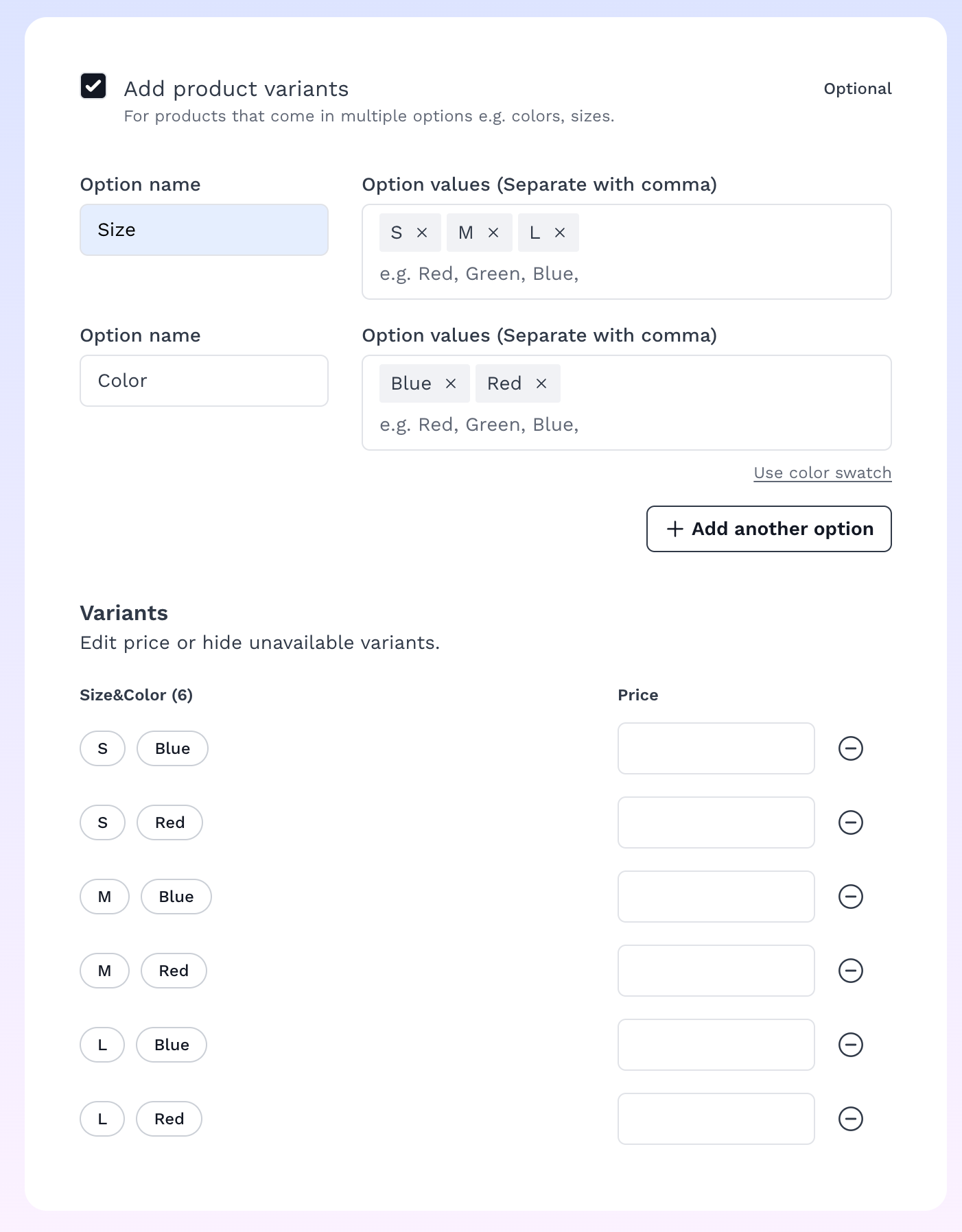
Variants let a single product listing offer multiple buyable options like Size or Color instead of creating a separate product for every combination.
Step 1: Turn on variants
On the Add product (or edit product) page, check Add product variants below the image uploader. This reveals the variant builder.
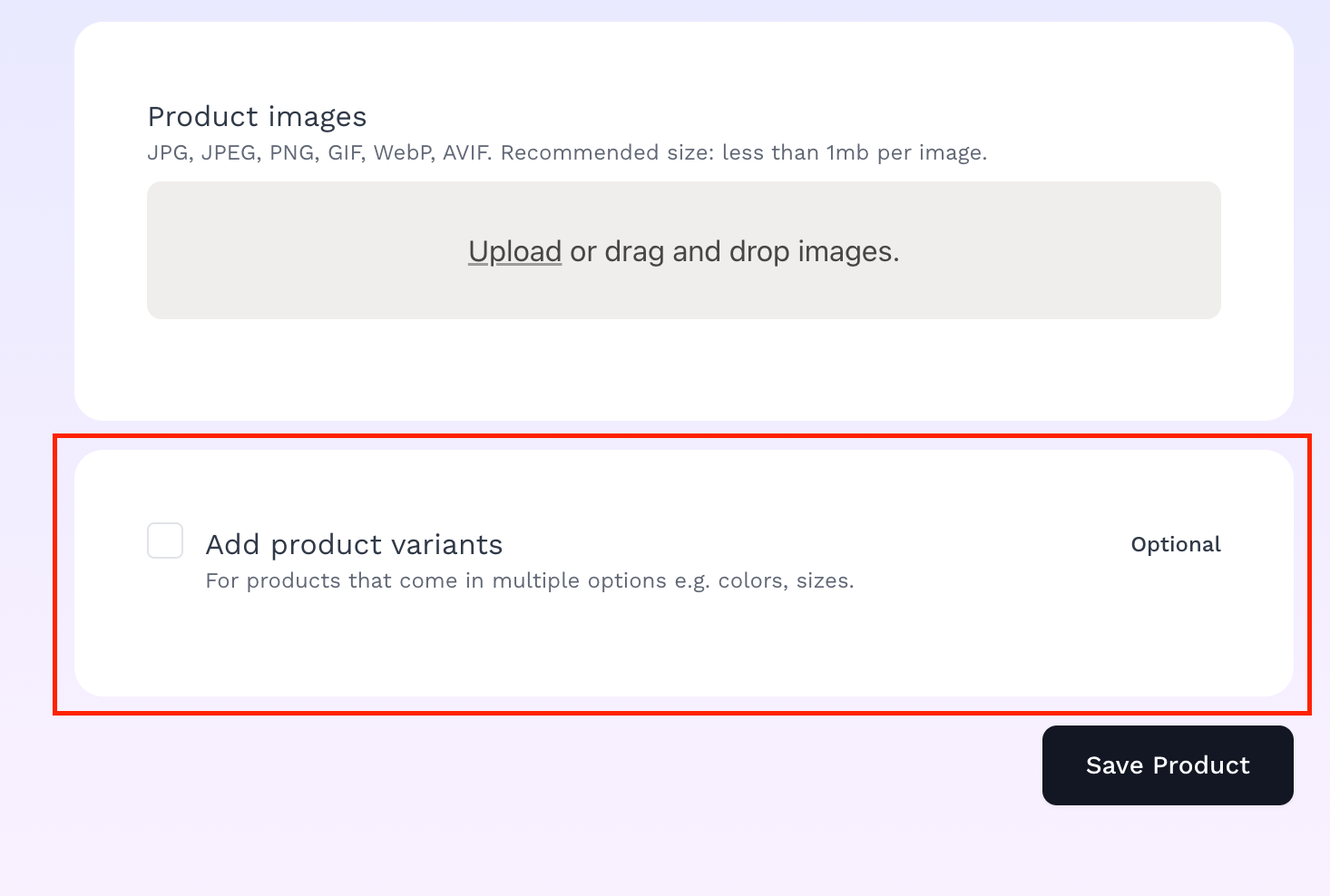
Check the add product variants box to reveal the setup
Step 2: Add your first option group
Each option group has two parts:
- Option name e.g. Size, Color, Material
- Option values; type a value and type a comma to turn it into a tag (e.g. type Small, and it becomes a chip). Click the × on a chip to remove it, or press Backspace in the empty input to remove the last one.
Example: a T-shirt in three sizes:
| Option name | Option values |
|---|---|
| Size | Small, Medium, Large |
| Color | Red, Green, Blue |
Vendroad automatically generates every combination for you: 3 sizes × 3 colors = 9 combinations:
 Small-Red   Small-Green   Small-Blue
  Medium-Red  Medium-Green  Medium-Blue
  Large-Red   Large-Green   Large-Blue
Each combination shows up as its own row below the option groups, with an editable price (pre-filled with the product's price, override it if a combination costs more, e.g. Large costs more fabric) and a toggle to mark a combination available/unavailable (use this instead of deleting it, e.g. if you're temporarily out of Large-Blue).
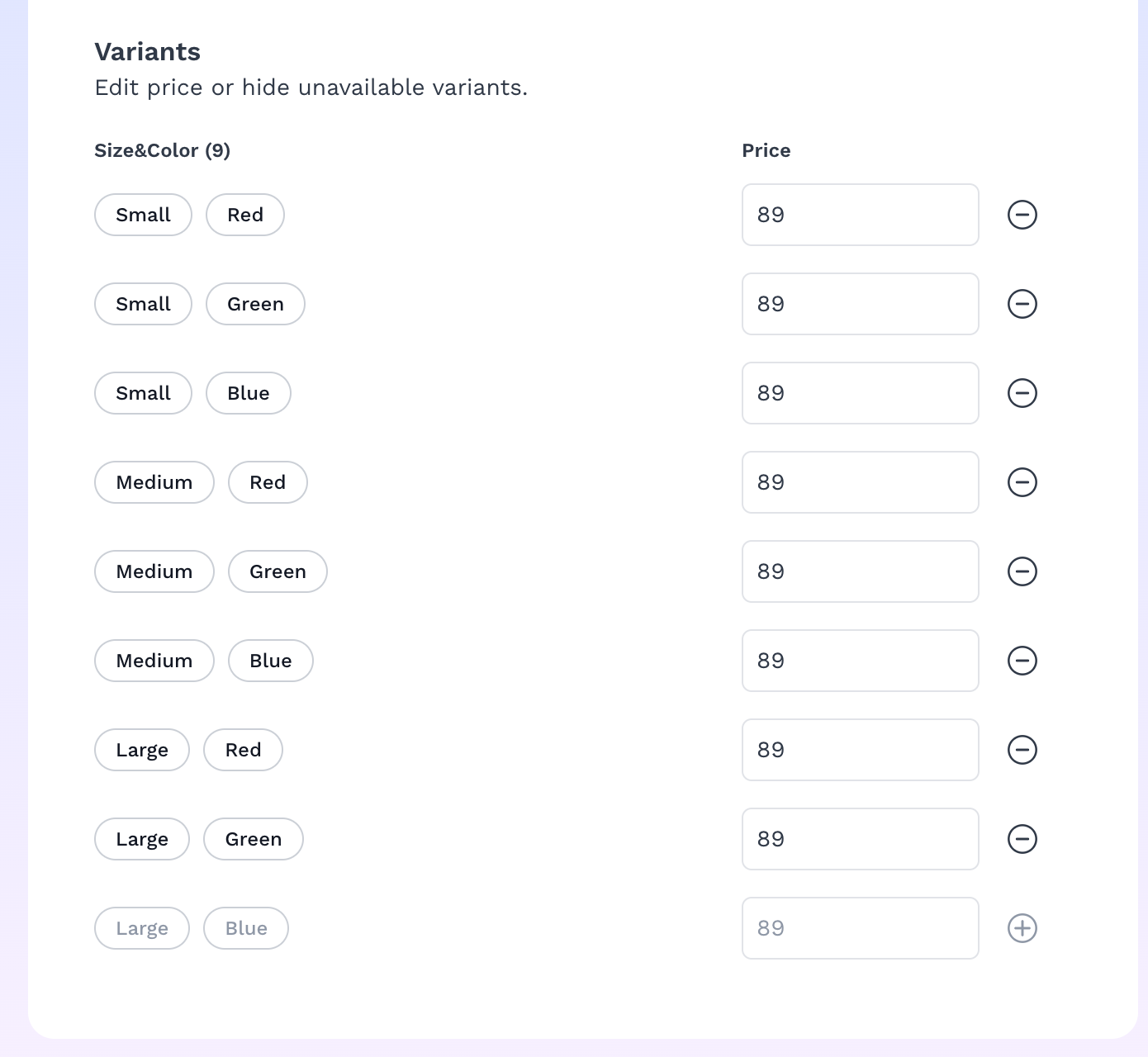
Variants combination if you have more than 1 options group
Full example
A hoodie in 2 sizes and 3 colors:
- Check Add product variants.
- Option group 1 — Name: Size; Values: Medium, Large
- Option group 2 — Name: Color; Values: Black, Grey, Maroon
- Vendroad generates 6 combinations: Medium-Black, Medium-Grey, Medium-Maroon, Large-Black, Large-Grey, Large-Maroon.
- Adjust price on the Large rows if larger sizes cost more.
- Toggle off any combination you don't actually stock (e.g. Large-Maroon).
- Click Save Product.
Want your Color values to show as color circles instead of text, or a real photo per variant? See "How to use color swatches on variants."