How to Use Color Swatches on Variants
By default, variant options show as plain text buttons (e.g. "Red", "Green", "Blue"). If your option group is a color, Vendroad can show actual color circles instead, this only works when the option name is recognized as a color field.
Step 1: Name the option group as a color
Vendroad only unlocks the swatch picker when the option name (case-insensitive) matches one of: color, colour, tint, shade, colorway, hue, tone, finish,color family, color variant, swatch, palette, multi-color, solid color, gradient, custom color.
So name your option group Color, not "Options" or "Type", and add its values, e.g. Red, Green, Blue.
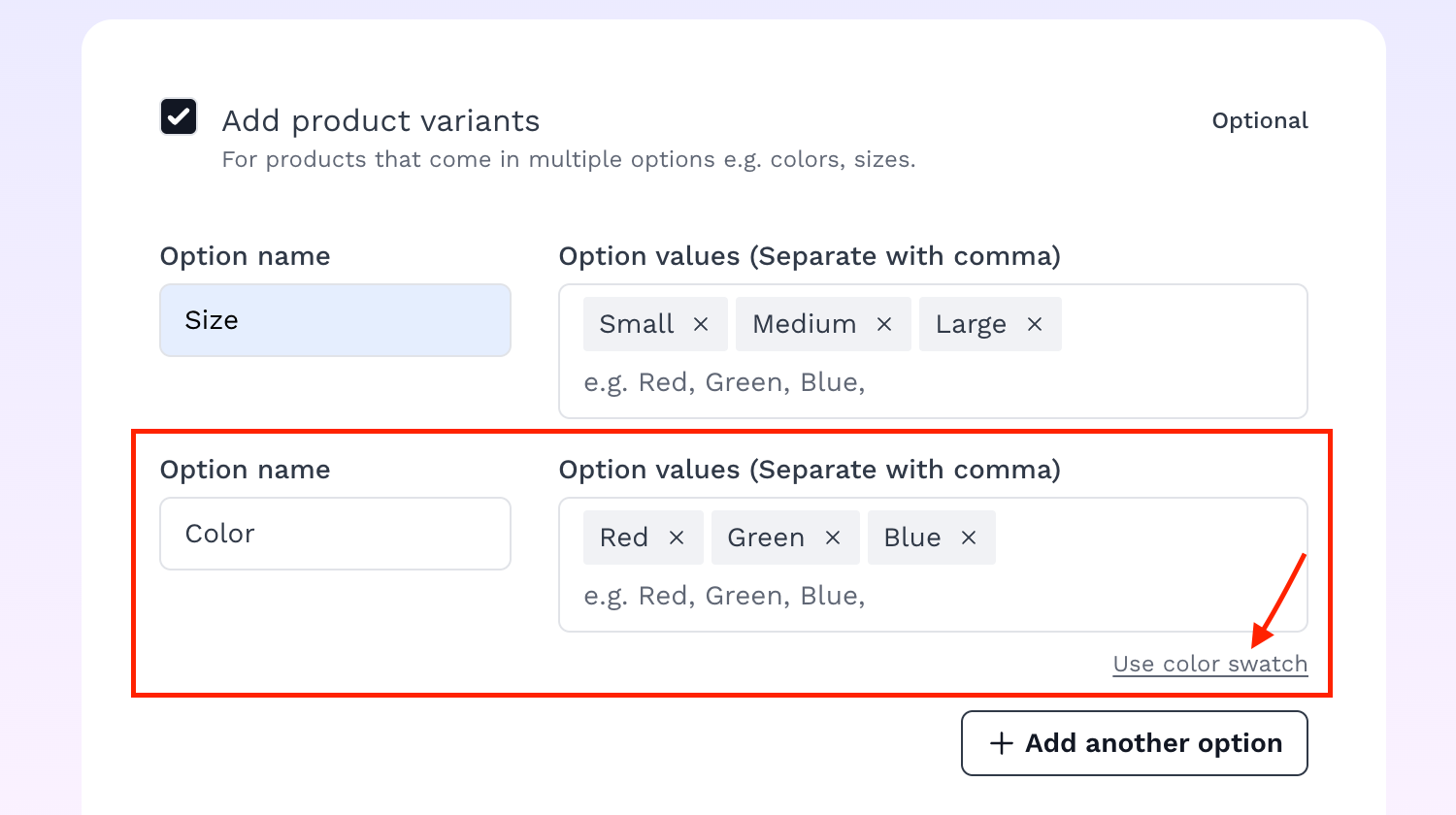
When a color keyword is detected, a "use color swatch" appears
Step 2: Open the swatch picker
A Use color swatch link appears above the option values once you've named the group a recognized color term. Click it.
A modal opens listing every value you added (Red, Green, Blue), each with:
- A color circle preview
- A native color picker (click the circle to open your OS/browser color picker)
- A hex input you can type directly, e.g. #DC2626
- A Clear button to remove a color once set
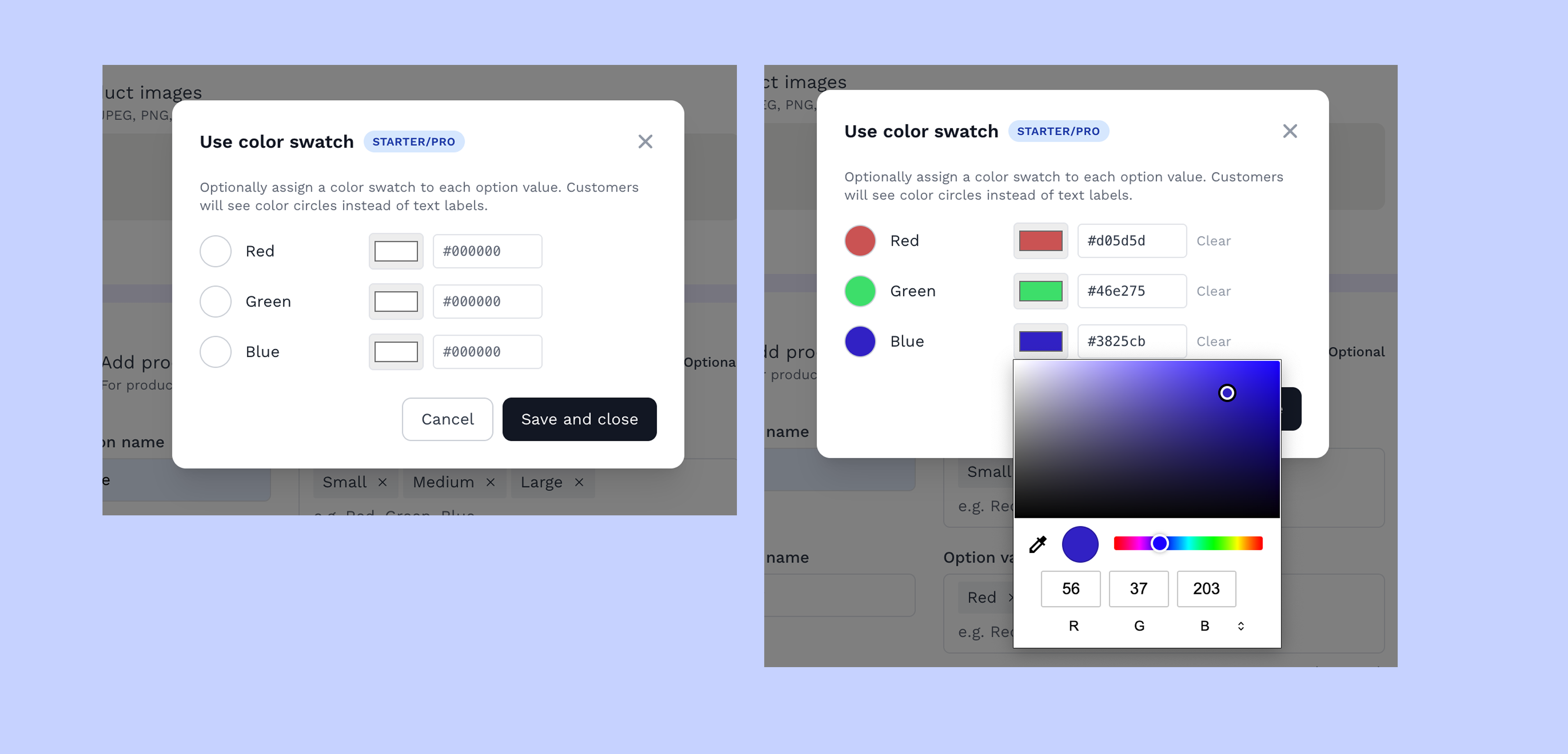
Set your colors using the swatch picker
Step 3: Set a color for each value
Example:
  ┌───────┬─────────┐
  │ Value │ Swatch  │
  ├───────┼─────────┤
  │ Red   │ #DC2626 │
  ├───────┼─────────┤
  │ Green │ #16A34A │
  ├───────┼─────────┤
  │ Blue  │ #2563EB │
  └───────┴─────────┘
Set each one, then click Save and close. Values you've assigned a swatch to now show a small color dot next to their name in the builder, confirming it's set.
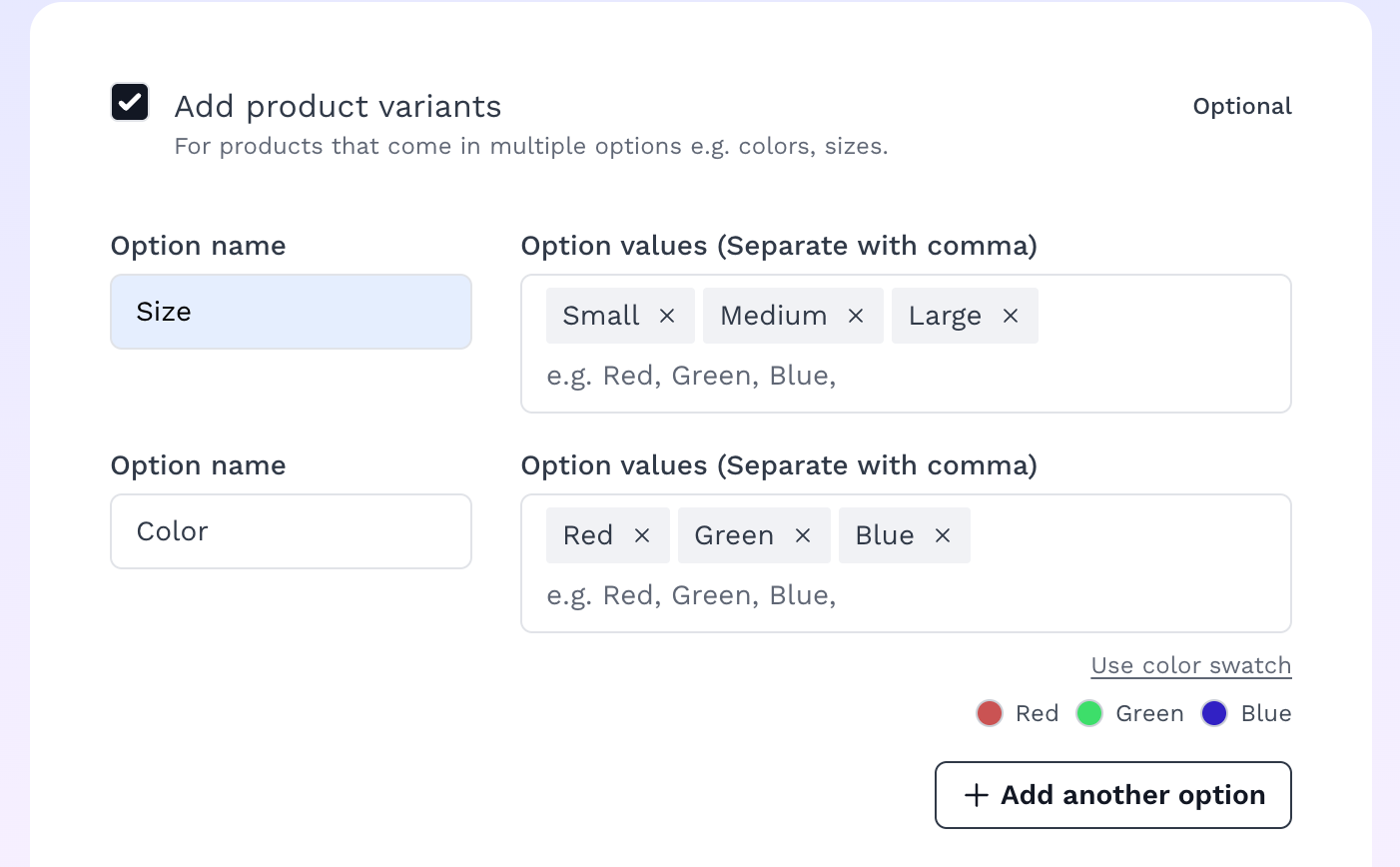
Once it's set, you will see the color dots next to your variant
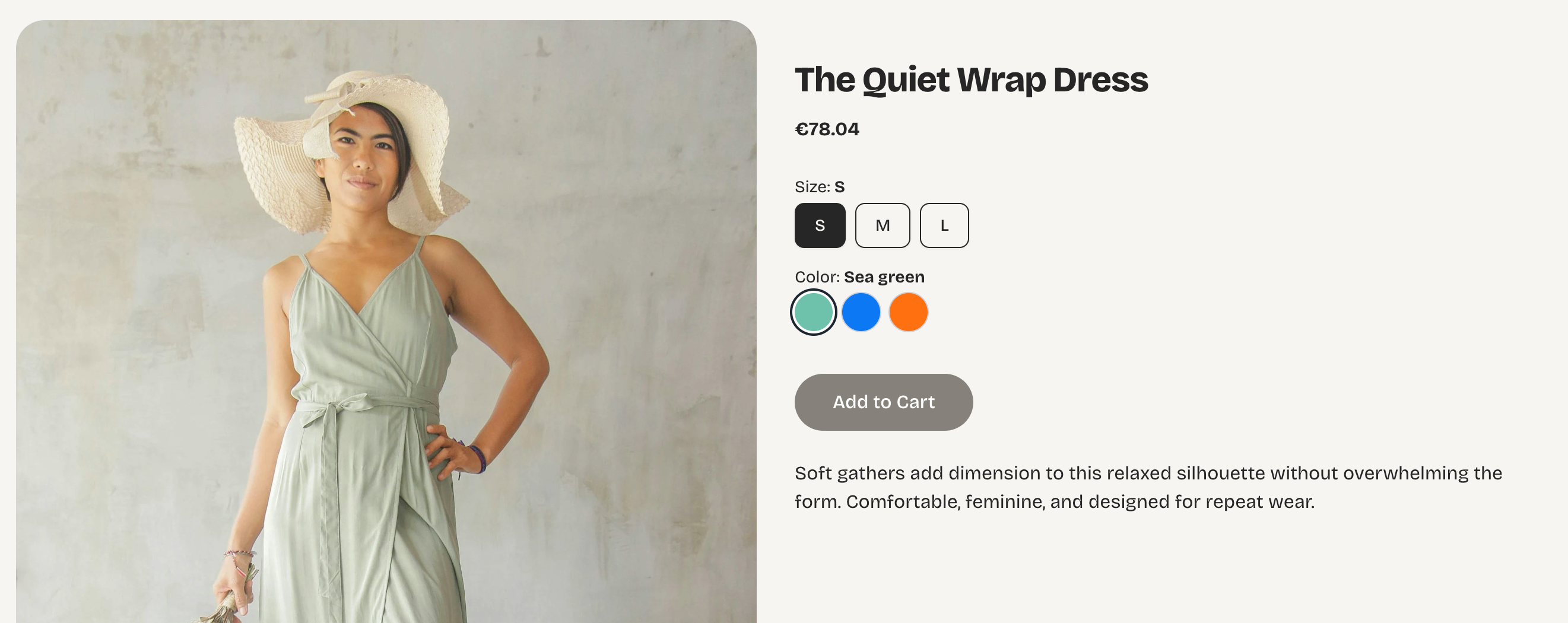
Your color swatches appear on website instead of just labels
Important note
Swatches are a paid feature. You can still set them on the free plan, and they'll be saved, but customers will keep seeing plain text options (e.g. "Red") instead of color circles until you upgrade. Vendroad shows this warning directly in the modal if you're on the free plan.
Bonus: assign a real photo per variant instead of just a color. If you'd rather show an actual product photo per variant than a flat color circle, that's a separate step: once you've added variants and uploaded product images, each combination row gets a checkbox. Select one or more (e.g. all the "Red" combinations), click Set image, and pick one of your uploaded photos.
This is also a paid feature and requires photos to already be uploaded to the product.