How to Add Your First Product on Vendroad
Step 1: Start a new product
From the sidebar, click Products, then Add product (also available directly from the Dashboard page). This opens the Add new product form.
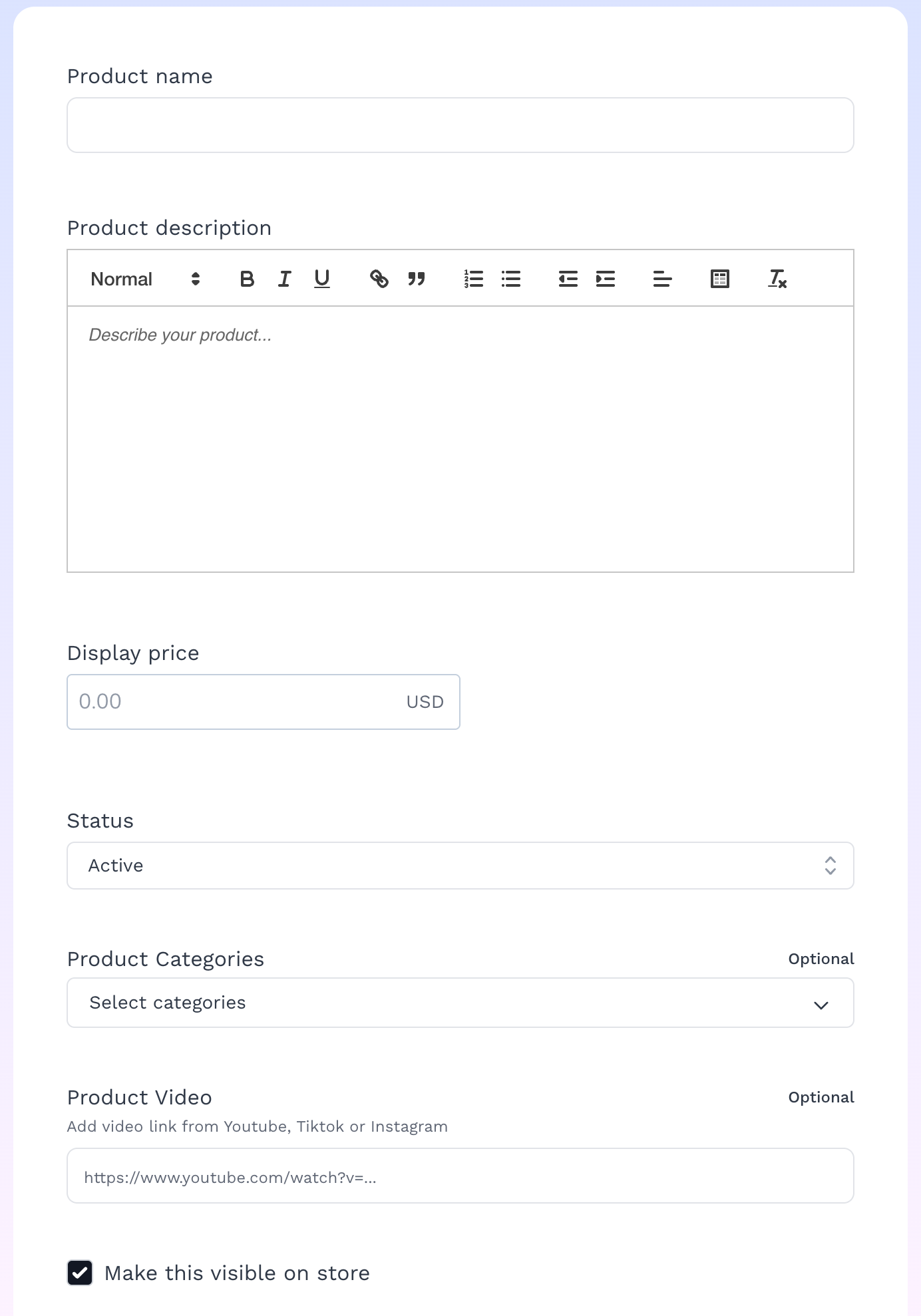
Step 2: Fill in the basics
- Product name — required, at least 4 characters, and must be unique among your other products.
- Product description — a rich-text editor for details, formatting, etc.
- Display price — shown with your store's currency as a suffix.
- Status — controls how the product behaves on your storefront:
- Active and Sold Out are free.
- On Sale (shows a struck-through old price next to the new one) and Pre-order (shows a "PRE-ORDER" button instead of "Add to cart") both require a paid subscription — if you're on the free plan, you'll see an upgrade prompt instead.
Step 3: Optional details
- Product Categories — assign it to one or more categories from an accordion selector. If you haven't created any categories yet, there's a Manage categories link right there to set them up first.
- Product size guide — if you've created any size guides, pick one here and it'll show on the product page.
- Product Video — paste a YouTube, TikTok, or Instagram link of your product video to embed on the product page.
- Make this visible on store — checked by default. Uncheck it to save the product as a draft that customers can't see yet.
Step 4: Add photos
Below the main form, upload your Product images (JPG, JPEG, PNG, GIF, WebP, or AVIF — Vendroad recommends keeping each under 1MB). How many images you can add depends on your plan. Free plan is limited to 1 image, you can upgrade to add more images.
Important: if "Make this visible on store" is checked, you must upload at least one image — Vendroad blocks publishing an image-less product with the error "Product cannot be displayed on the store without an image."
Step 5: Add variants (optional)
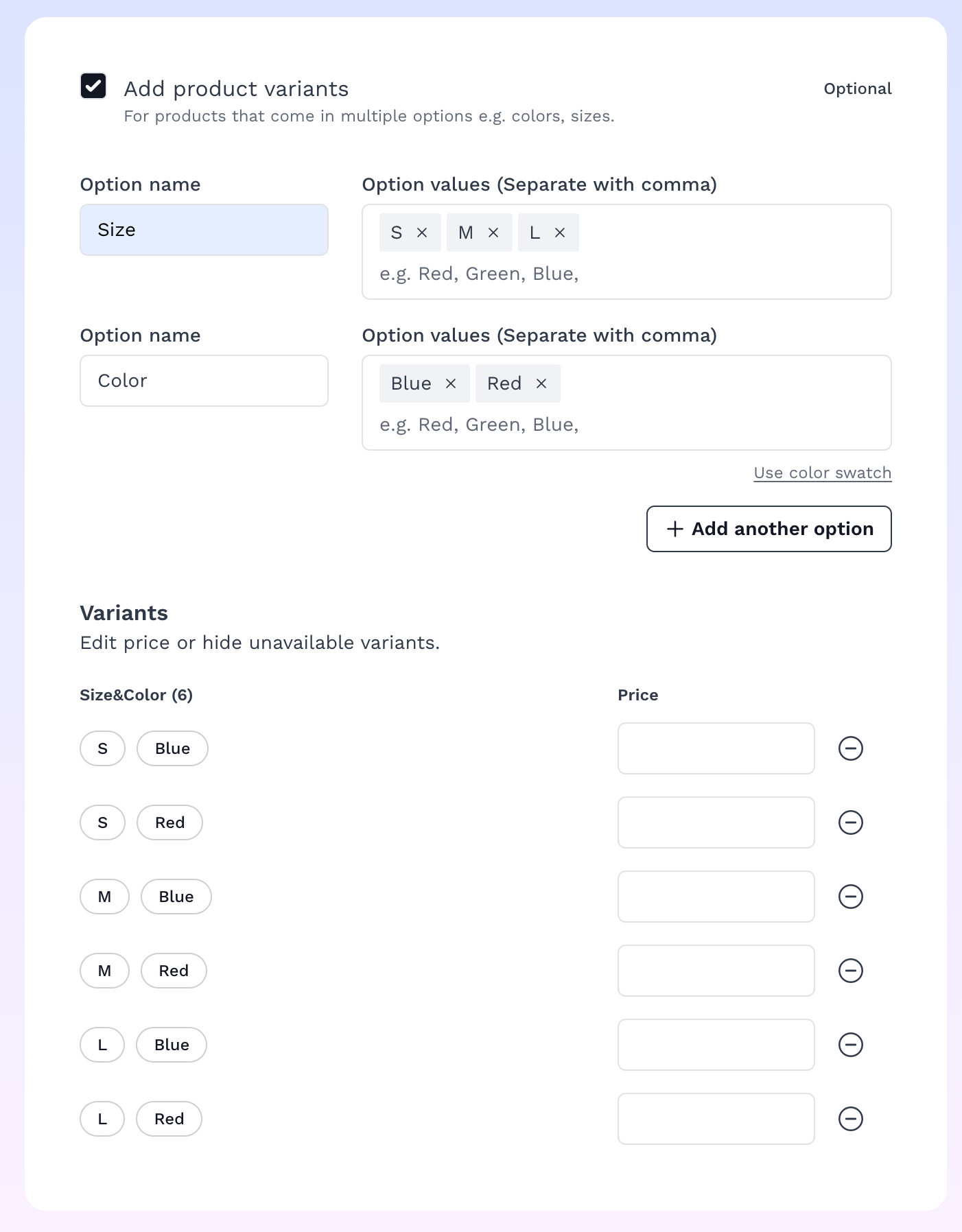
If your product comes in multiple options — like Size or Color — check Add product variants. This reveals a variant builder where you define your option groups and their values (e.g. Size: S/M/L, Color: Red/Green/Blue).
Vendroad automatically generates every combination for you — so Size × Color with 3 sizes and 3 colors creates all 9 combinations (S-Red, S-Green, M-Red,
etc.), and you can set price per combination. If you check this box, you do need to define at least one variant before saving, or Vendroad will stop you.
Step 6: Save
Click Save Product. You'll land back on your Products list with a confirmation, and your product is live (or saved as a draft, depending on what you chose in Step 3).