How to Add a Size Guide to a Product
Size guides in Vendroad are created once and then reused across as many products as you like, so you don't have to rebuild a sizing table for every dress or t-shirt you list.
Step 1: Create a size guide
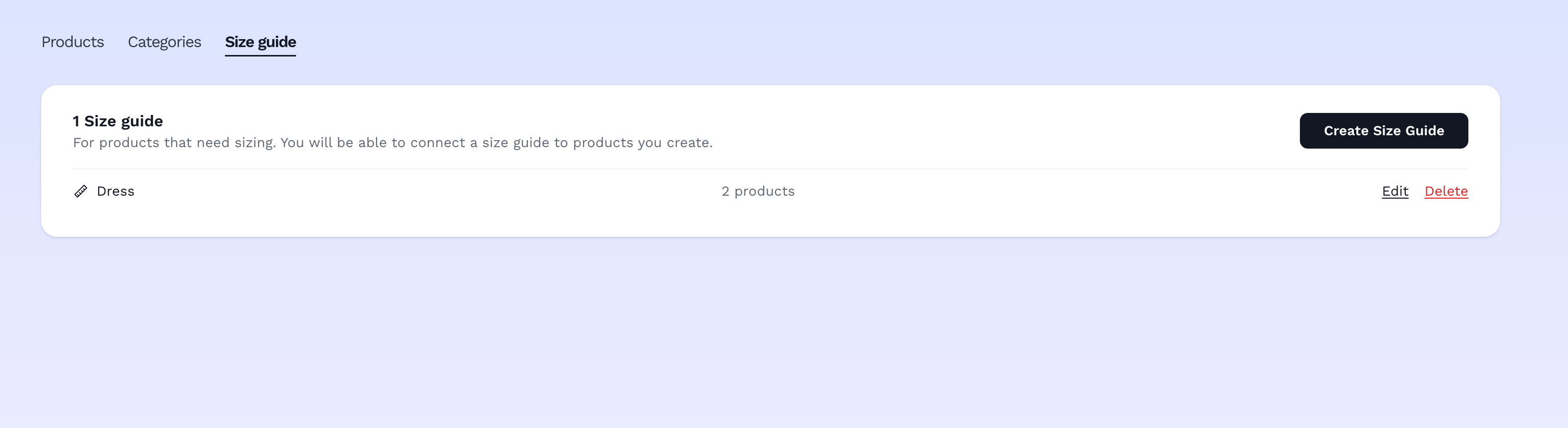
Where to create a size guide: products > size guide tab
- Go to Products, then click the Size guides tab.
- Click Create Size Guide.
- In the modal:
- Guide name: an internal label only for you to know which category of label this is for, e.g. "Shirt size chart." Customers never see this name.
- Size guide: build the actual content customers will see, using the editor toolbar. Use the table icon to insert a sizing table — pick how many rows and columns you need (e.g. a Size × Chest/Waist/Length grid).
- Existing chart: If you already have an existing size guide chart image, use the image icon to upload a size chart photo instead of (or alongside) a table.
4. Click Save. Note: You can't save an empty guide. Vendroad requires actual text, a table, or an image before it'll let you save.
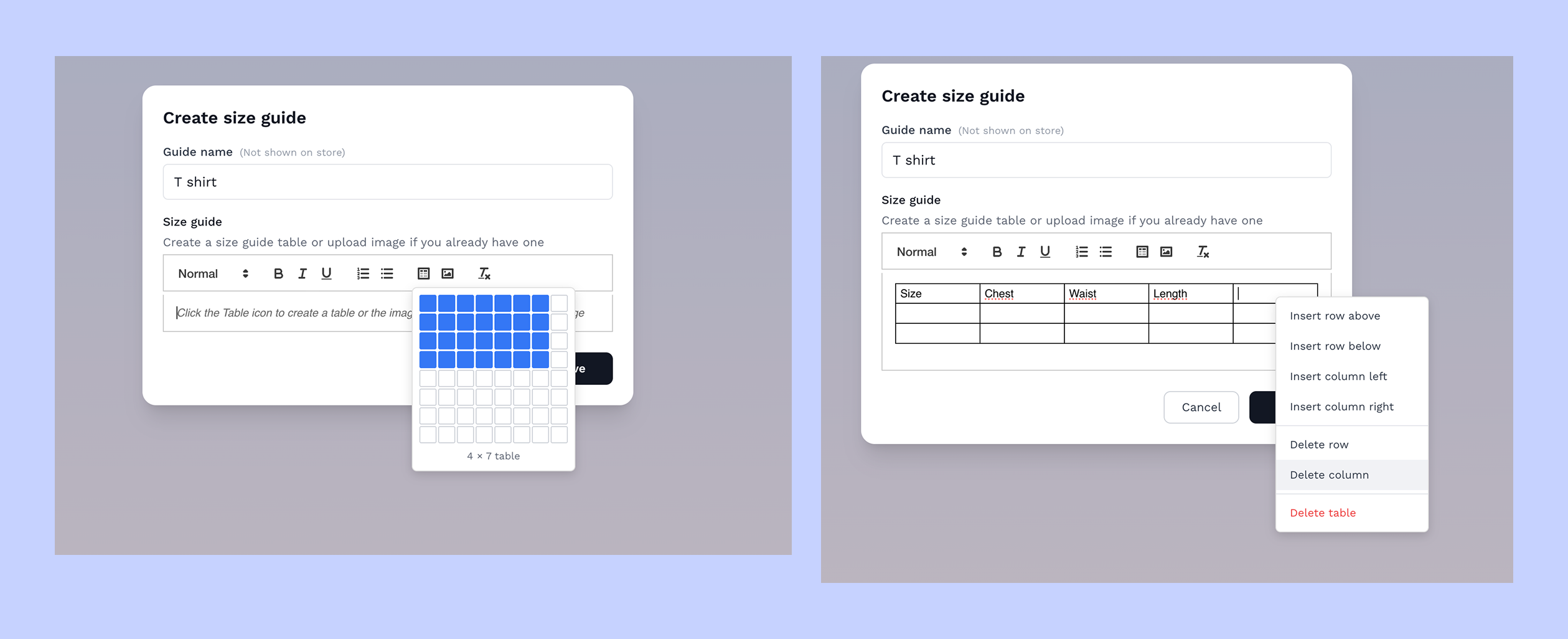
How to insert table into the size guide
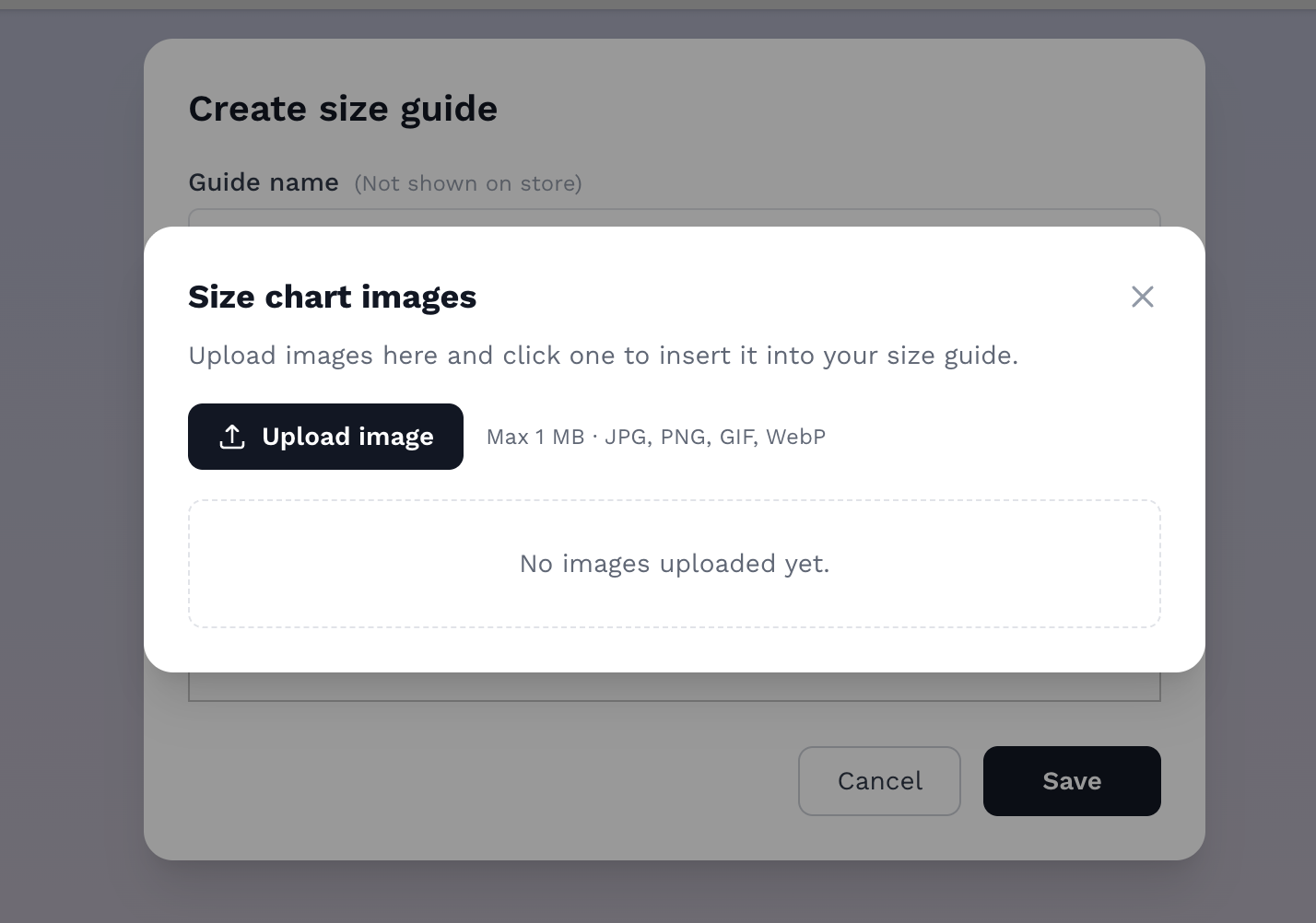
Upload image if you already have an existing size guide
Step 2: Attach the guide to a product
- Open a product — either while creating a new one or editing an existing one.
- Scroll to the Product size guide section (only shows up if you've created at least one guide).
- Click the guide you want to use. Clicking it again deselects it. You can only attach one guide per product.
- Save the product as usual.
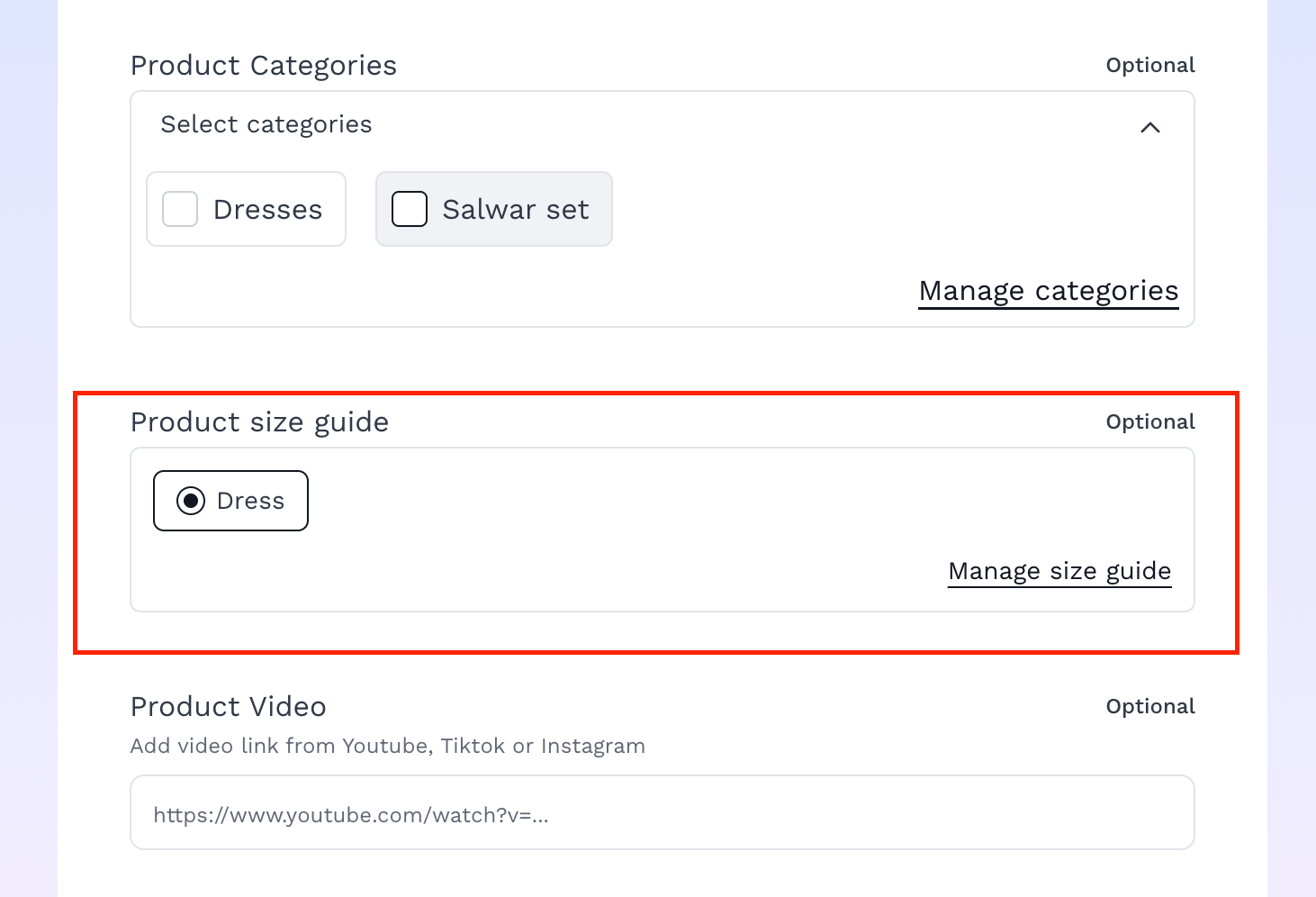
Attach the size guide when creating new products. You can only select 1
Selecting a guide here automatically makes it visible on that product's page — there's no separate visibility toggle to remember.
What customers see
On the product page, a Size guide link appears next to the product info. Clicking it opens your guide's content in a popup, without leaving the page.
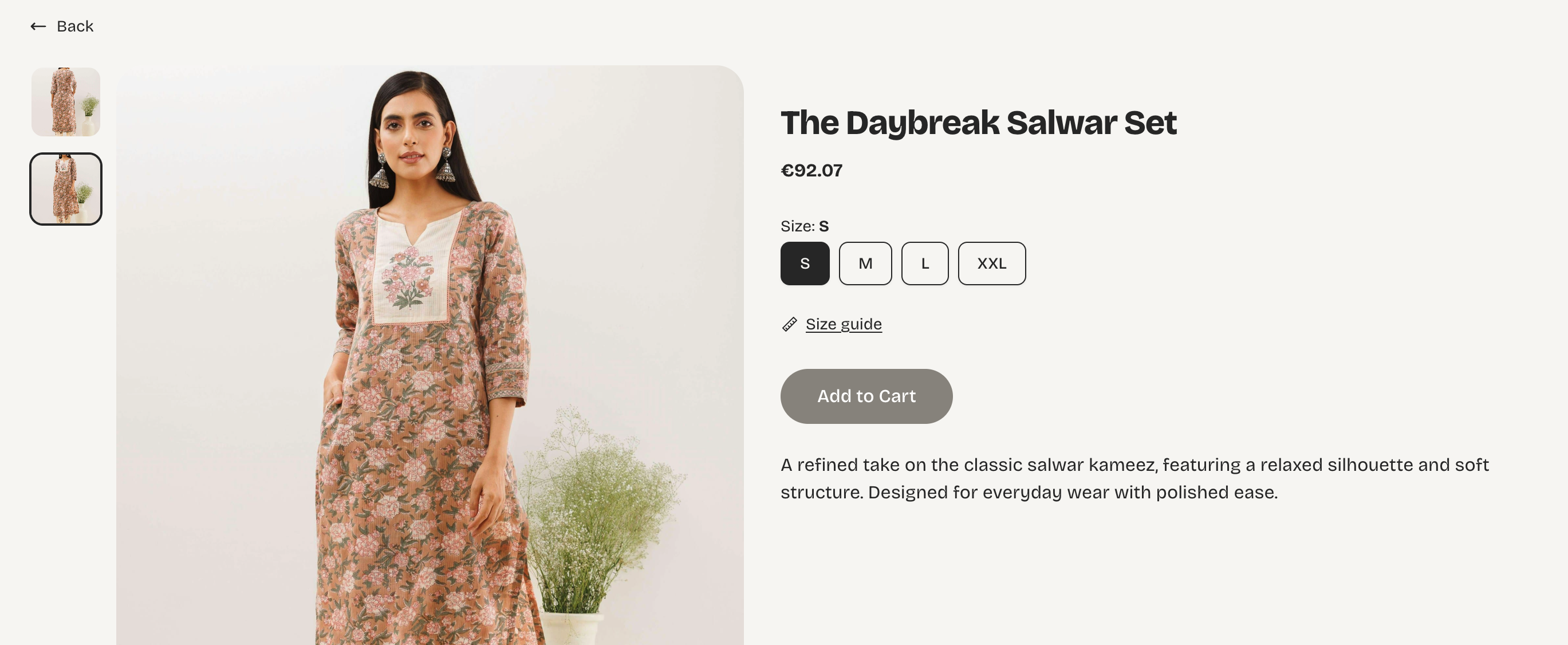
The size guide link with ruler icon shows up on your product
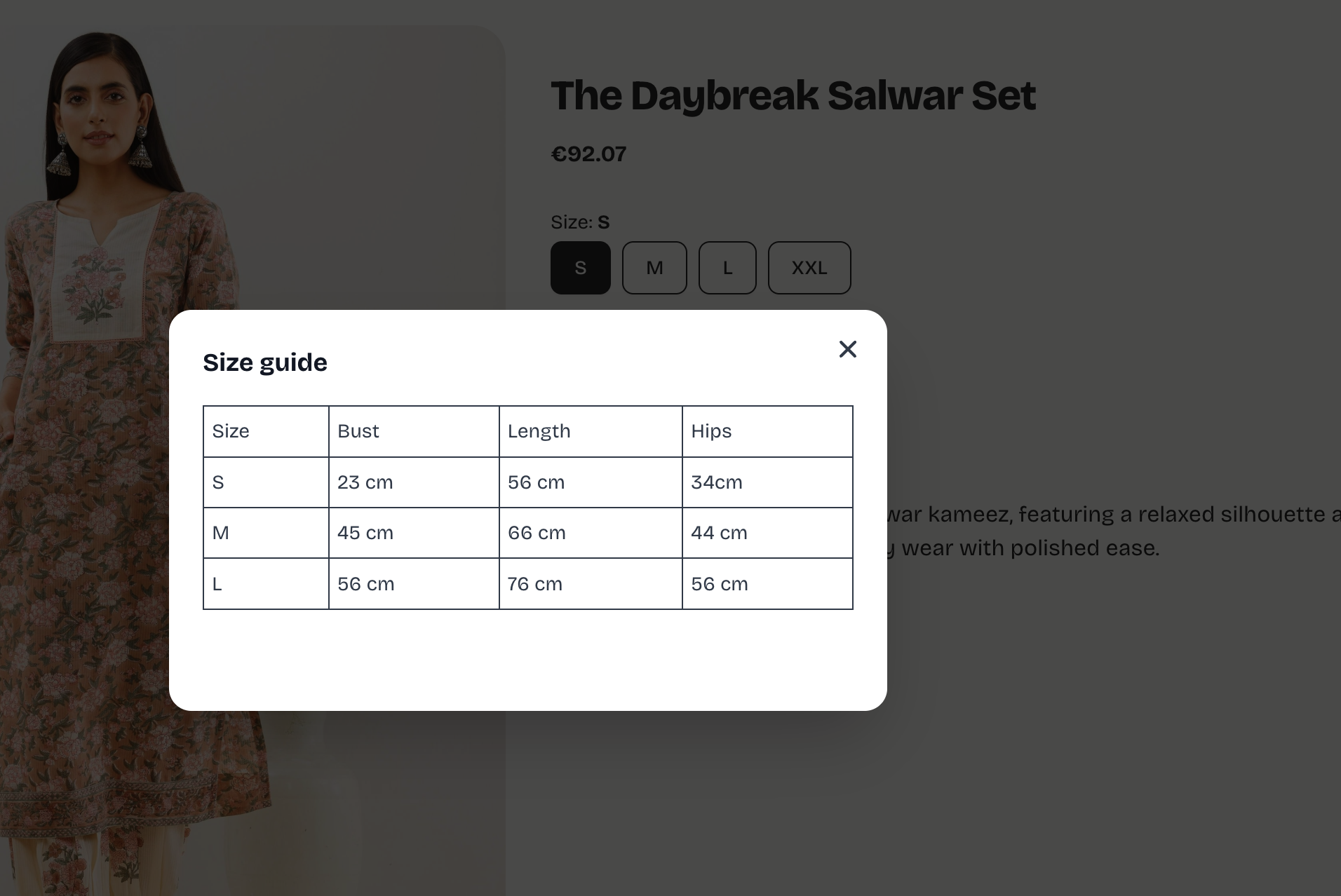
When the link is clicked, it brings up the modal
Managing guides later
Back on Products > Size guides, each guide in the list shows how many products use it, plus Edit and Delete links. Editing updates it everywhere it's attached; deleting removes it from every product using it.
Assigning a guide to multiple products
If you already have multiple existing products and you want to bulk assign a guide to them. Go to products. Select all the products you wish to assign. You will see the size guide option. Choose a guide, and it will automatically be assigned to those products.
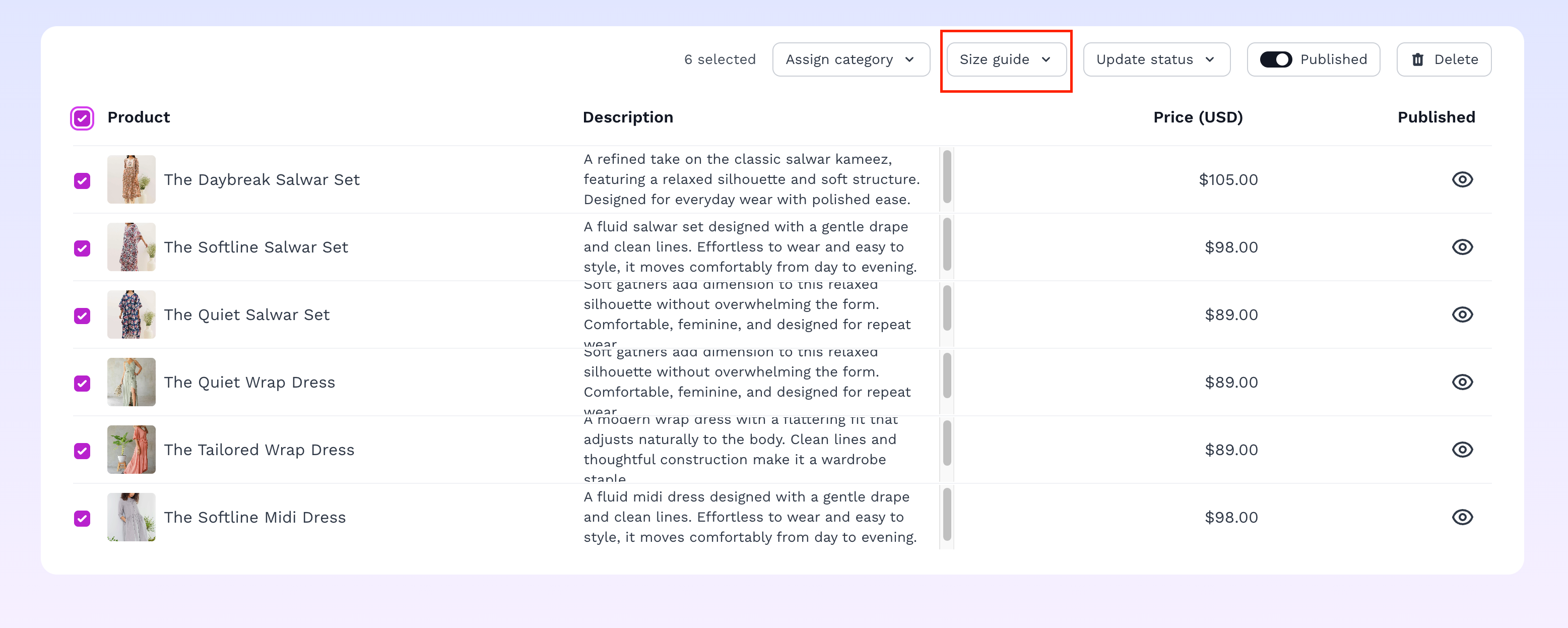
Assign size guide to multiple products at once
Tip: if you sell several similar product types (e.g. T-shirts vs. hoodies) with different sizing, create a separate guide for each rather than trying to cram both into one table.