How to Use the Invoice Payment Method
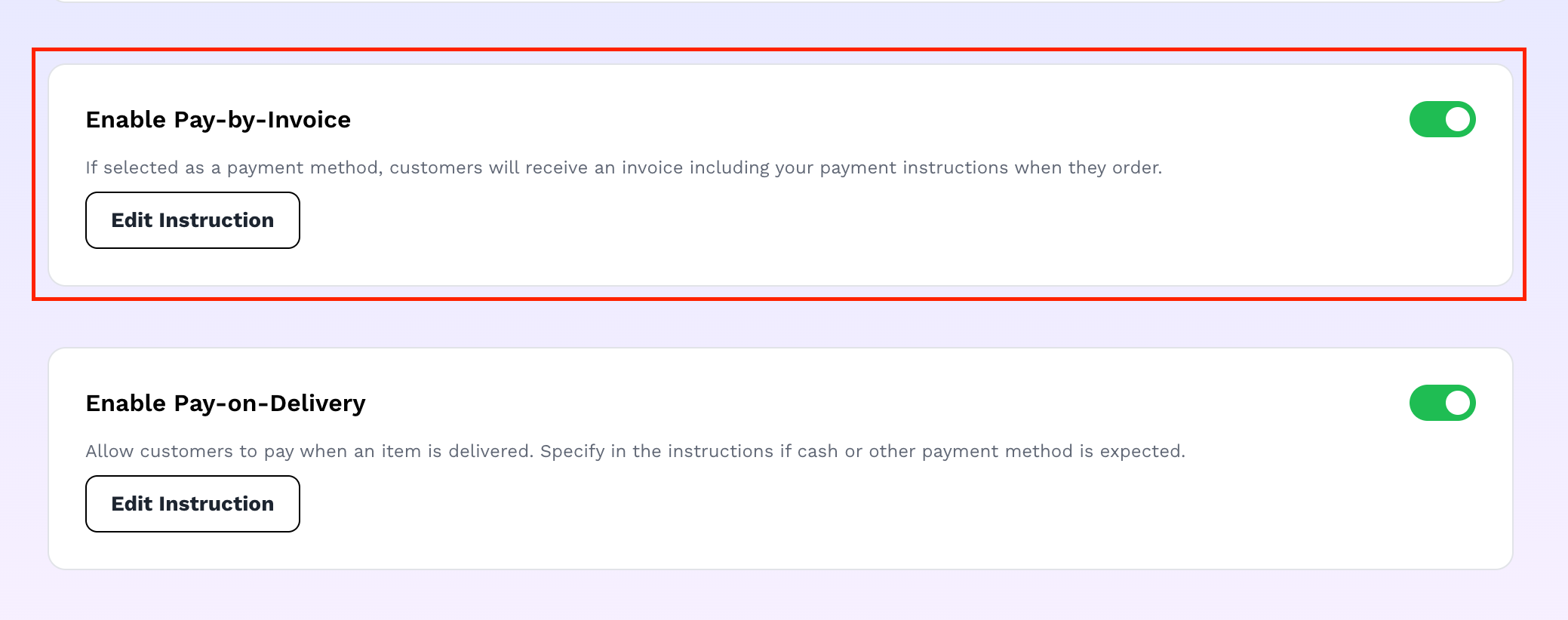
The Pay-by-Invoice option lets you accept orders without collecting payment online at checkout; you send the buyer your own payment instructions (e.g. a bank transfer), and mark the order as paid yourself once you've received it.
Payment by invoice
Step 1: Turn it on
Go to Store settings → Setup payment. Find Enable Pay-by-Invoice and toggle it on.
Step 2: Add your payment instructions
Once enabled, click Add Payment Instruction. Two things to fill in:
- Payment instruction: a rich-text field explaining exactly what the buyer should do (e.g. "Transfer to Access Bank, Acct: 0123456789, then send your receipt to..."). This is required and is shown to the buyer, so be specific; you can't save the option without it.
- Time Frame (in days): how many days the buyer has to complete payment after placing the order. Required specifically for this payment method (at least 1 day). This is the one field unique to invoice payment; the other manual payment options (pay-on-delivery, pay-on-location) don't ask for it.
Click Save.
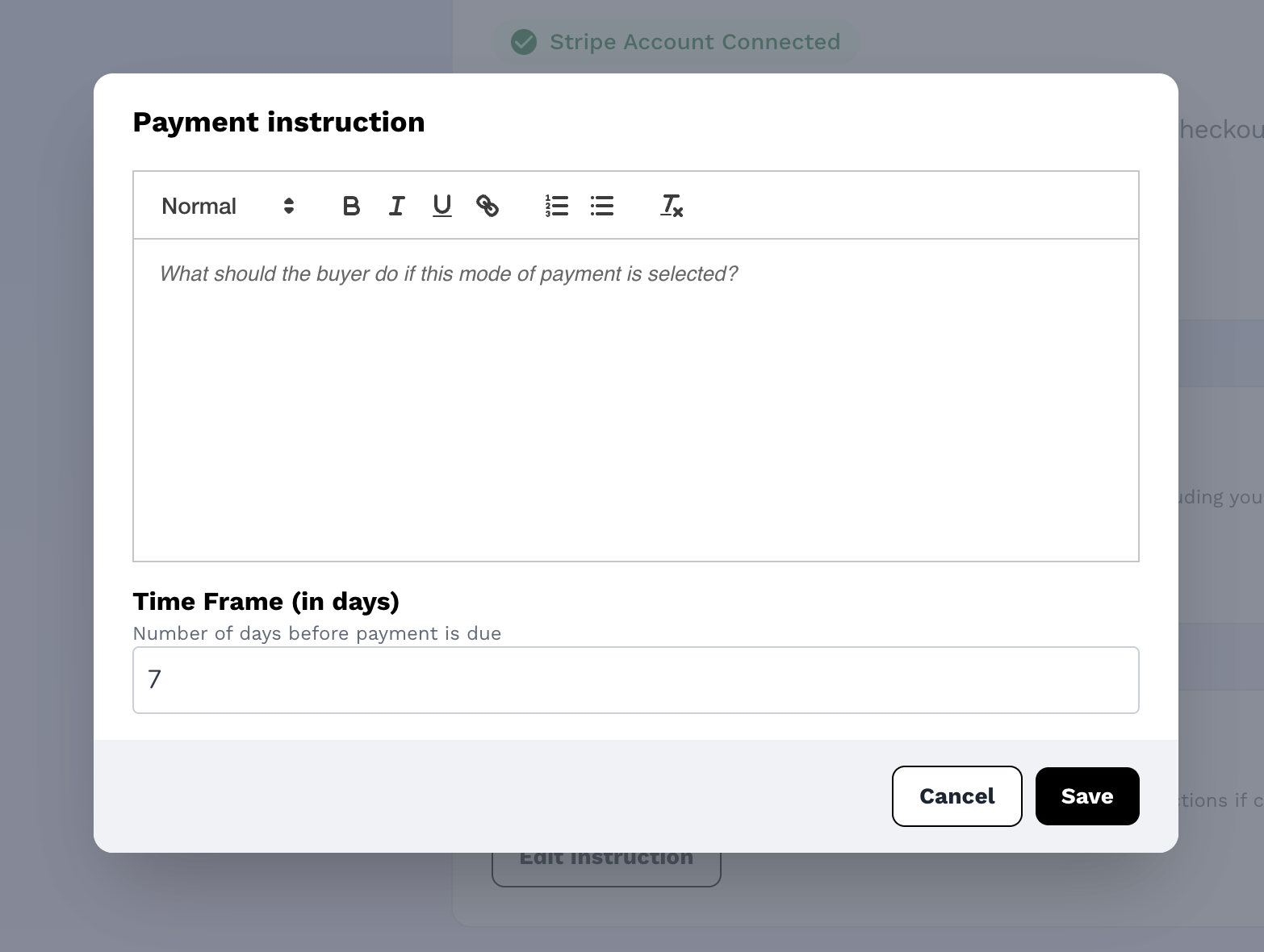
Enter your instruction - e.g where they should pay to
What the buyer sees at checkout
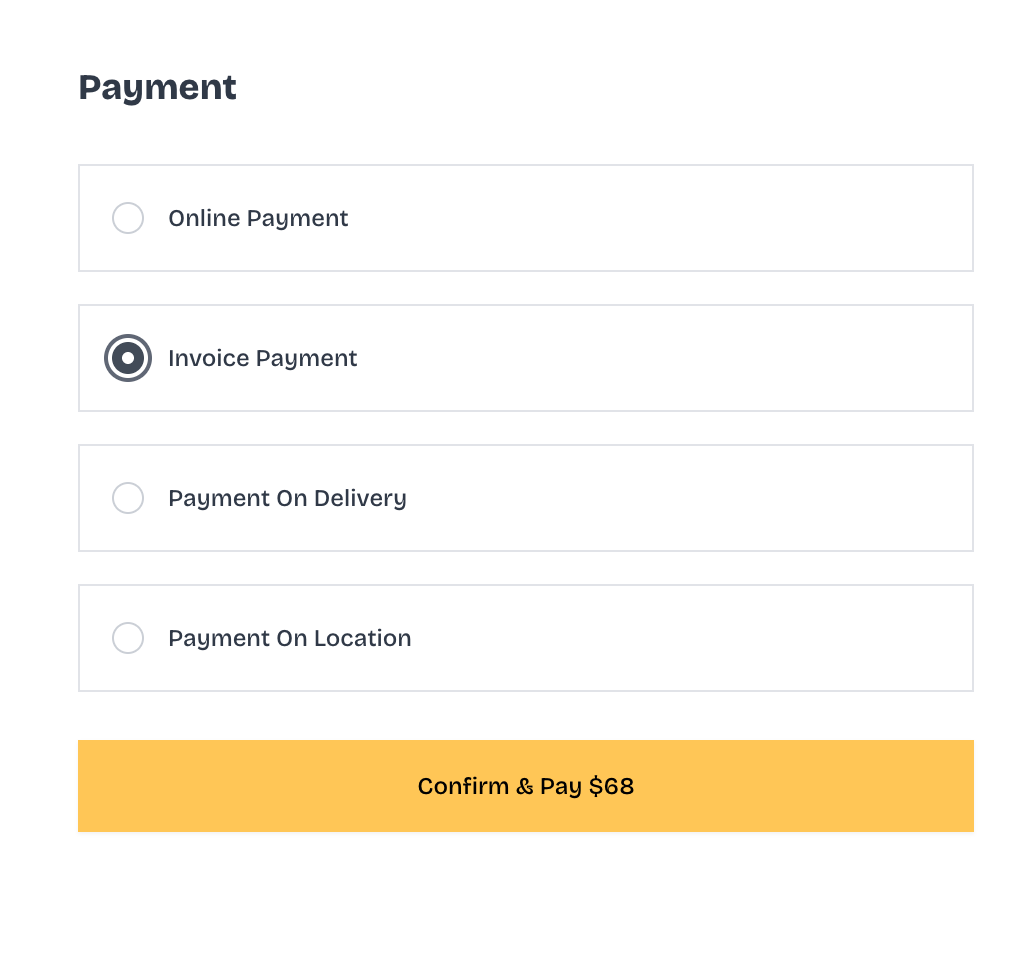
If you've filled in both fields above, Invoice Payment appears as a selectable option on your checkout page, alongside Online Payment and any other manual payment methods you've enabled. If you toggle it on but leave the instruction empty, it stays hidden from checkout; enabling it alone isn't enough, it only shows once it's actually configured.
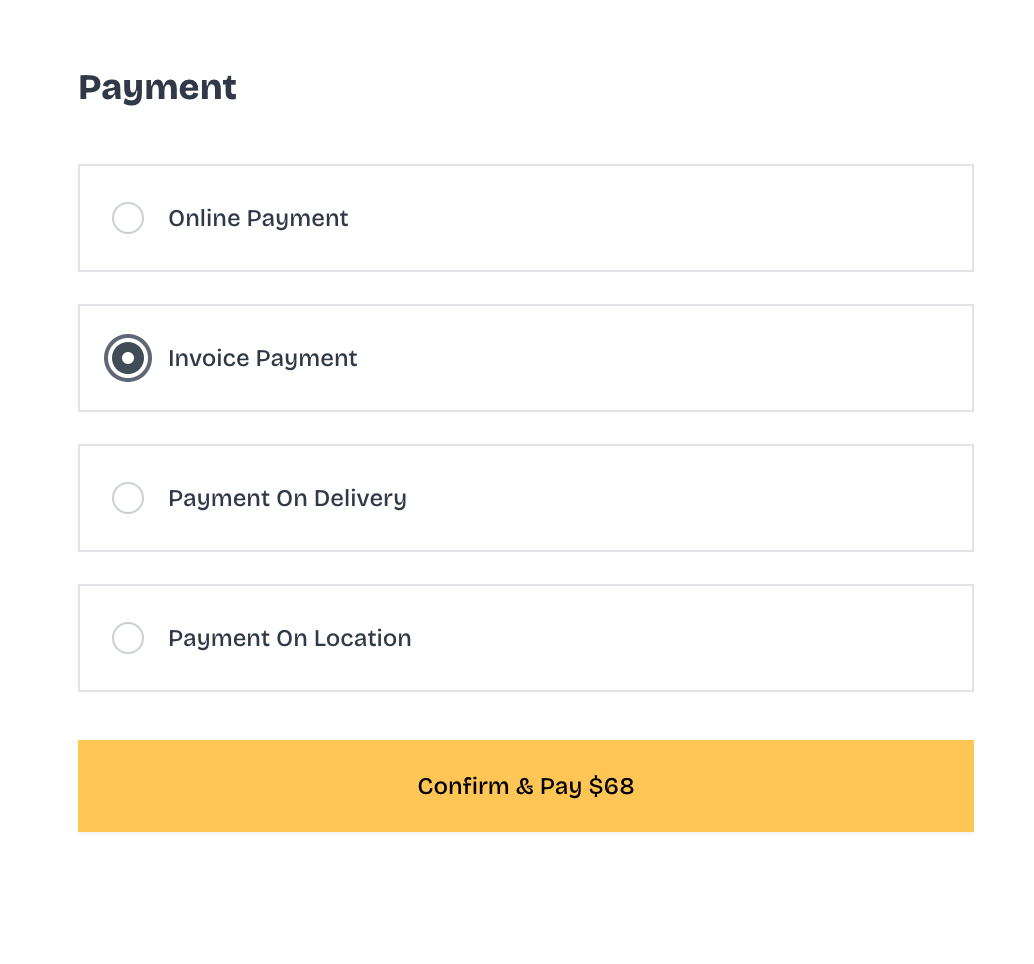
Invoice payment at checkout
What happens after the buyer chooses it
- The order is placed immediately; no online payment is collected at checkout.
- Both you and the buyer get an order confirmation email right away. The buyer's email includes a PDF invoice attached (with your shop's logo and the order details). This is specific to the invoice payment method; other manual payment options don't attach a PDF.
- The buyer follows the instructions you wrote to actually pay you (bank transfer, etc.). This happens outside Vendroad entirely, on whatever channel your instructions point to.
- You need to mark the order as paid yourself once you've confirmed you've received the money. You can do this from your Orders page, open the order and use Mark as paid. Vendroad has no way of knowing the payment happened until you tell it.
A few things worth knowing
- The "Time Frame" isn't enforced automatically (no auto-cancellation happens if the buyer misses it) — it's communicated to set expectations, but following up on late payments is on you.
- You can edit your instruction or time frame anytime from the same Setup payment page, changes only apply to orders placed after the edit, not retroactively.
- Turning the toggle off hides it from checkout for new orders, but doesn't affect orders already placed under it.