How to Connect Stripe to Accept Payments on Vendroad
Stripe lets your store accept card payments including Apple Pay, Google Pay, Klarna, Afterpay, and more directly at checkout. Here's exactly how to connect it.
Before you start: two requirements
- Your store must be published/live. The Stripe option won't even appear in your dashboard until your store is live.
- Your store currency has to be supported by stripe. Here's a link to all currencies supported by stripe. If you need to change your store's currency, do that from the same Payments page (currency dropdown near the top).
If both are true, you'll see a Connect Stripe card on your payments page. If you don't see it, it's almost always one of these two things.
Step 1: Go to Setup payment
From the sidebar: Store settings → Setup payment.
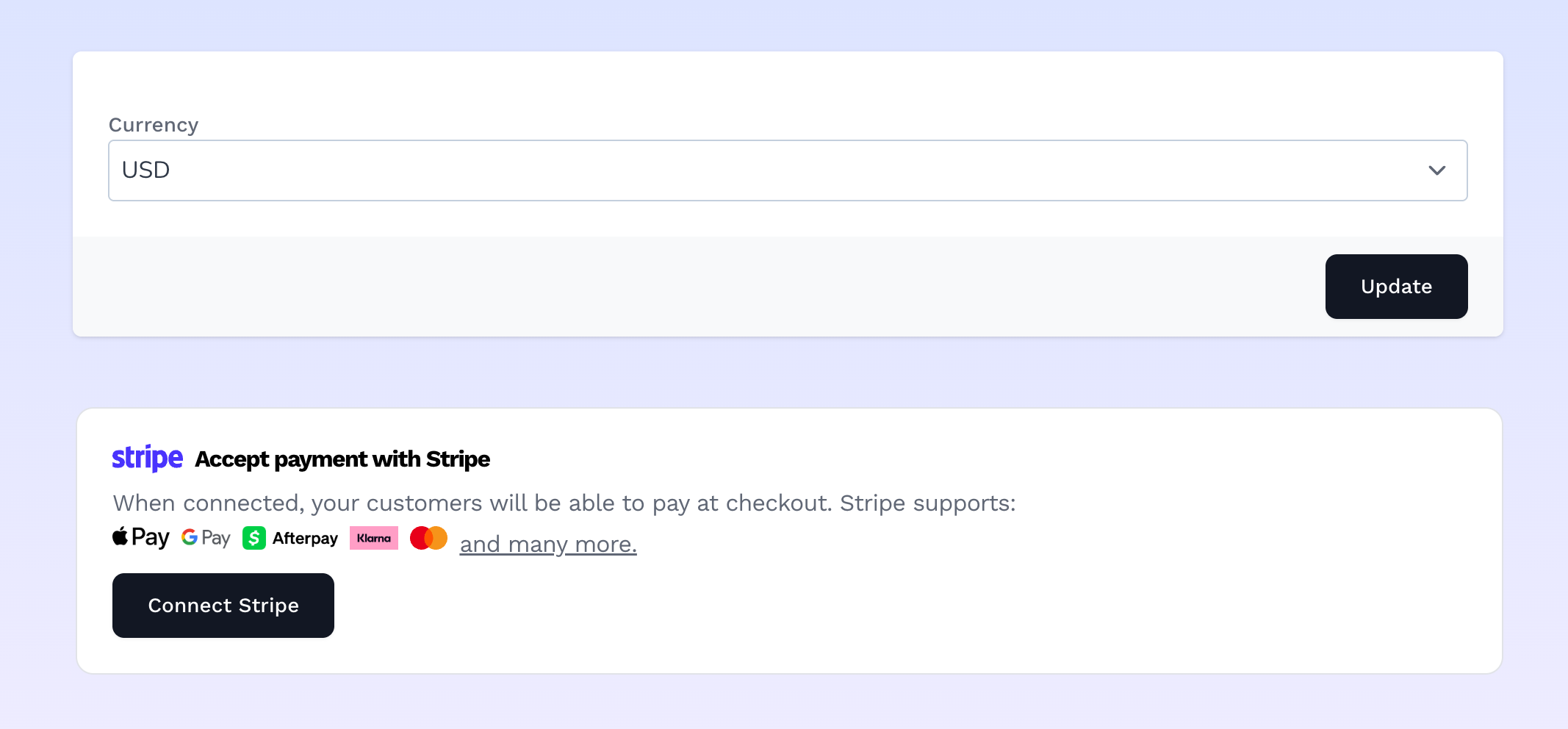
Click connect stripe to connect your stripe account
Step 2: Connect Stripe
In the Accept payment with Stripe section, click Connect Stripe.
This redirects you to Stripe's own site (connect.stripe.com). From there:
- If you already have a Stripe account, log in.
- If you don't, Stripe will walk you through creating one.
- Either way, you'll be asked to authorize Vendroad to connect to that account.
Step 3: You're redirected back automatically
Once you approve the connection on Stripe's side, you're sent back to Vendroad automatically; no code or key to copy/paste yourself. If everything worked,you'll see a green Stripe Account Connected badge where the Connect button used to be.
If something goes wrong (you cancel, or Stripe reports an error), Vendroad shows the error message right there and nothing gets connected — safe to just try again.
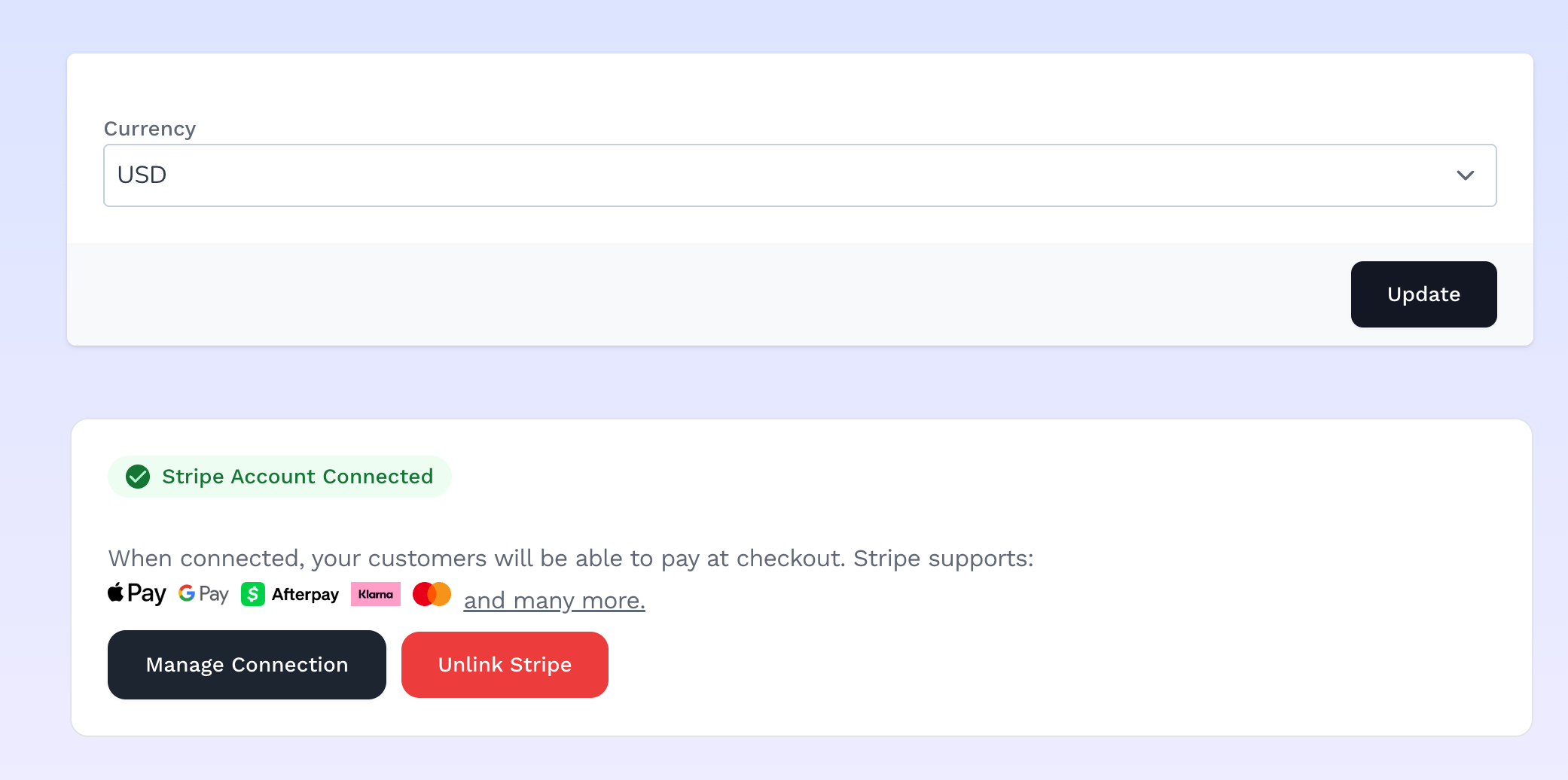
When connected, you will see the green connected badge
What connecting actually does
Vendroad uses Stripe Connect to link your own Stripe account to your store. When a customer checks out, Vendroad's checkout still creates the charge through Stripe against your connected account, but Vendroad doesn't take a cut.
The full payment goes to you.
Managing or disconnecting later
Once connected, the same section shows:
Manage Connection — re-opens the Stripe flow, useful if Stripe needs additional verification from you or something about your connected account needs fixing.
Unlink Stripe — disconnects it, with a confirmation step ("Unlinking your Stripe account will prevent you from offering Stripe payment options on your store."). Your store simply stops offering Stripe at checkout until you reconnect, nothing else about your store is affected.
Step 4: Send yourself a real test order
Since this connects your actual Stripe account, the safest way to confirm it's working is a genuine small transaction — not a fake test card (those only work if your Stripe account happens to be in Stripe's test mode, which isn't something Vendroad controls or guarantees for you).
1. Open your live storefront (visit your store URL directly).
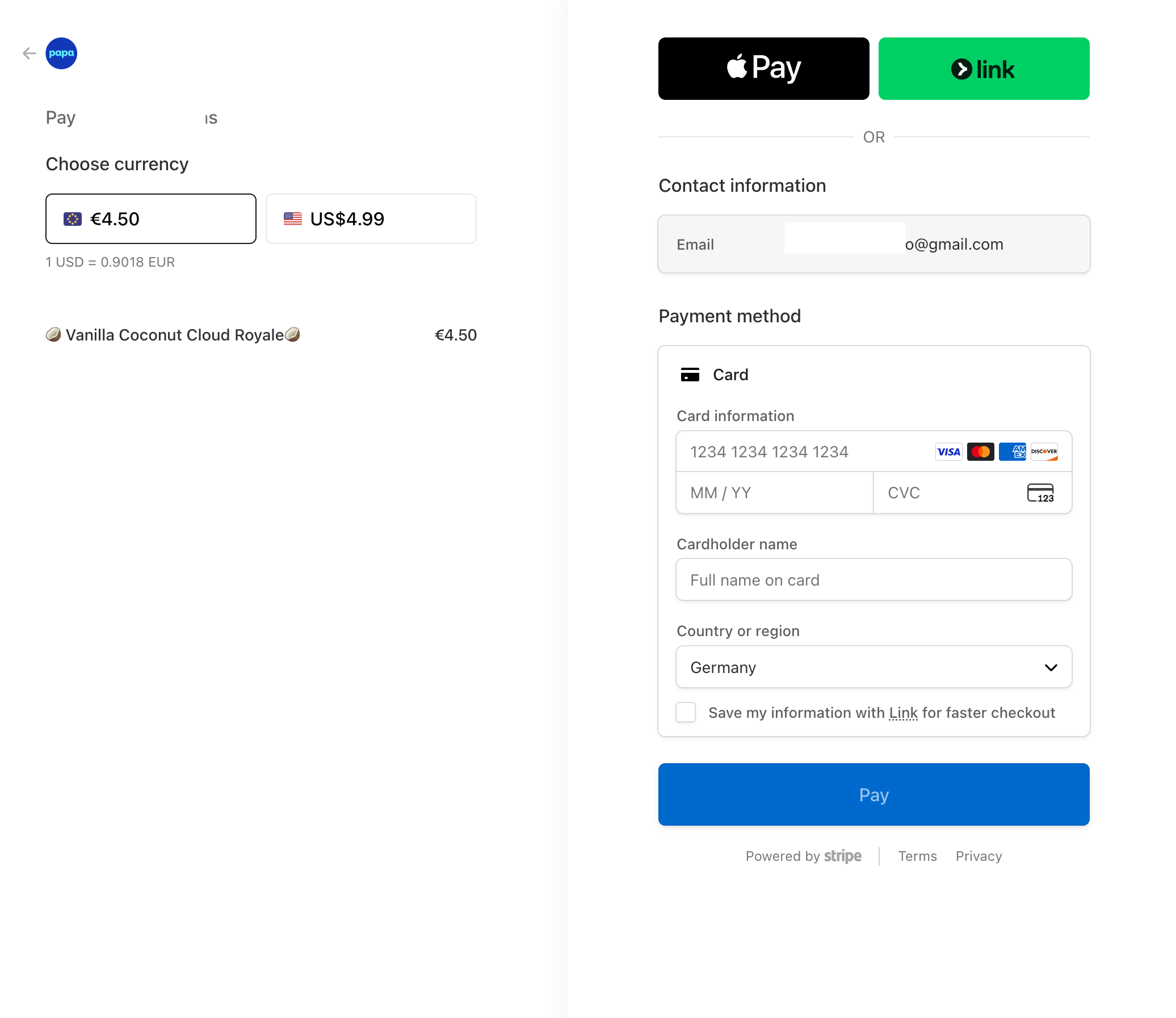
2. Add your cheapest product to cart and go through checkout, choosing "online payment" method as checkout.
3. Pay with a real card — your own, for a small amount.
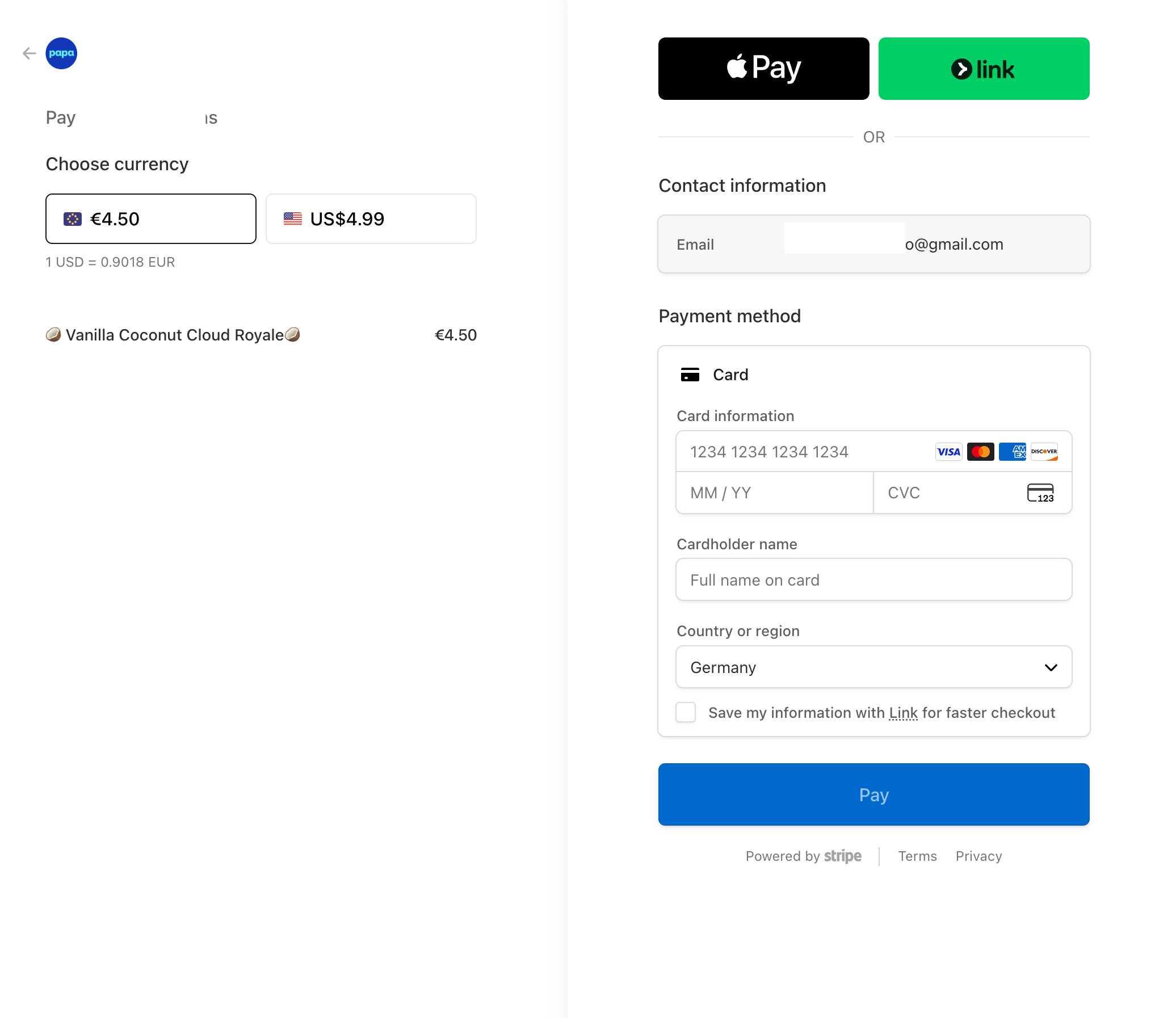
Payment page with your stripe connected account
What "working" looks like
- The order should flip to Paid automatically on your Vendroad Orders page — this happens via a webhook the moment Stripe confirms the charge, so youshouldn't need to do anything manually or refresh repeatedly.
- Log into your Stripe Dashboard (dashboard.stripe.com) and check Payments — the same charge should appear there, tied to your connected account, for the full amount (remember: no Vendroad fee is taken, so what you charged is what should show up).
Clean up afterward
Since this was a real charge, refund it once you've confirmed everything worked: in the Stripe Dashboard, find the payment under Payments, open it, and click Refund. This doesn't affect the order status check you just did — it just returns the money to your card so you're not left with a charge you didn't actually want.
If the order doesn't show as Paid after a successful-looking Stripe payment, that usually points to a webhook delivery issue rather than anything wrong with your card/account. Reach out for support at that point rather than repeatedly retrying the same payment.