How to customize your online store checkout for custom orders
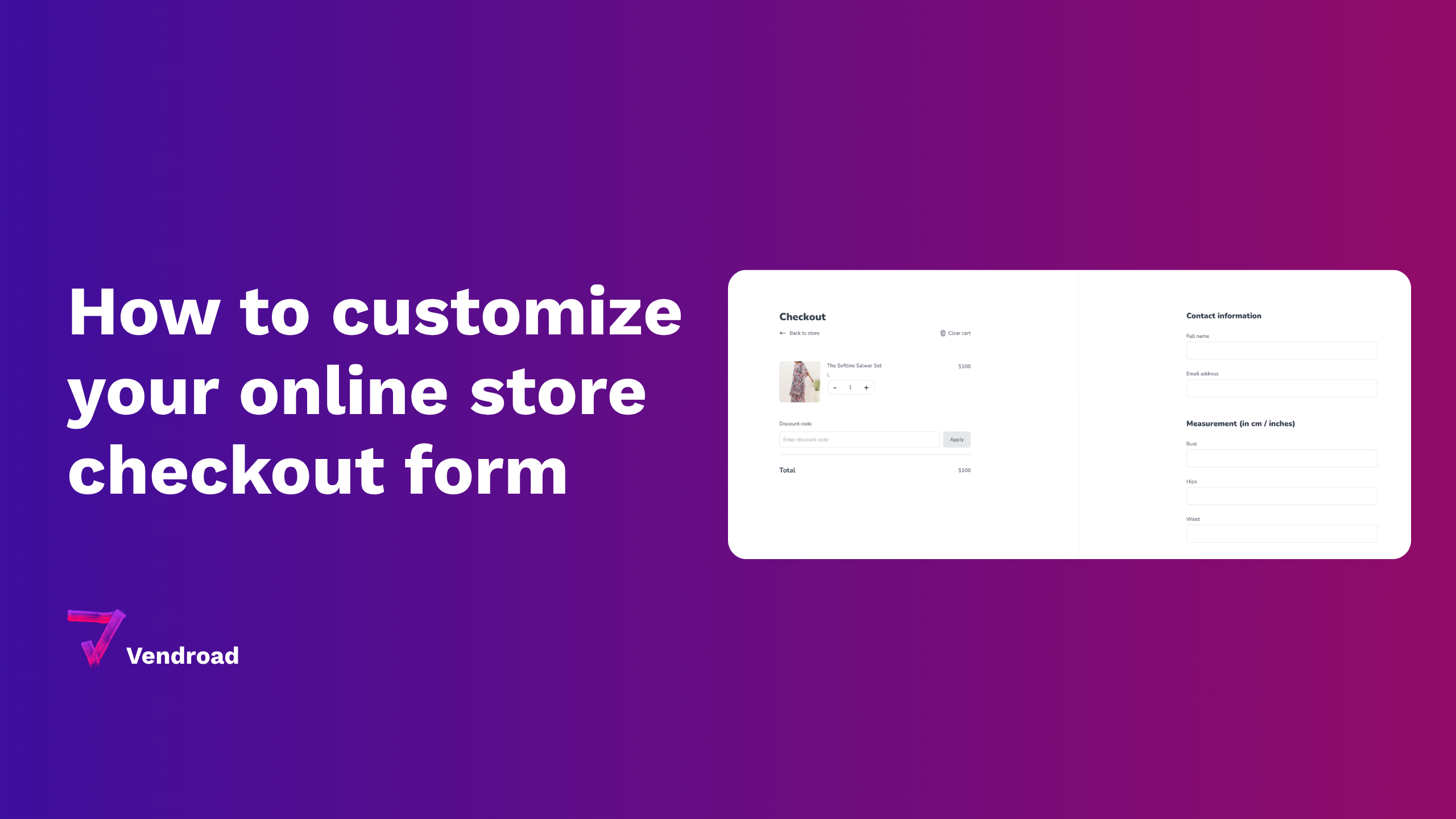
If you take custom orders, you need customers to tell you specific information about them to better design the product for them. Let's use an example of a clothing store, you may want to know the buyer's measurements.
Most checkout forms don't account for this, but you can do this on Vendroad checkout customization. Here's the step by step of how to customize your checkout form to take custom orders.
Quick youtube explainer video:
Step by step explanation
- Go to store settings > Store Pages: In store pages, you can edit pages. And one of the existing pages is the checkout page.
- Decide the information you need from customers: Let's assume you need measurement information: Hips, Waist, Bust, Length. These information are in numbers and you'd prefer to get them in CM/ inches.
- Add a section: For this kind of information where you require more than one field, you probably need a section. To create a section, click "Add new section" above the page. You will be asked to define section name and position. For this example, I will name it "Measurements (in cm / inches). The position is where you want this to be places in the checkout form. The existing positions are "Before contact information", "Before delivery information", "Before Billing" and "Before Other information." For this scenario, I will go with "Before delivery information."
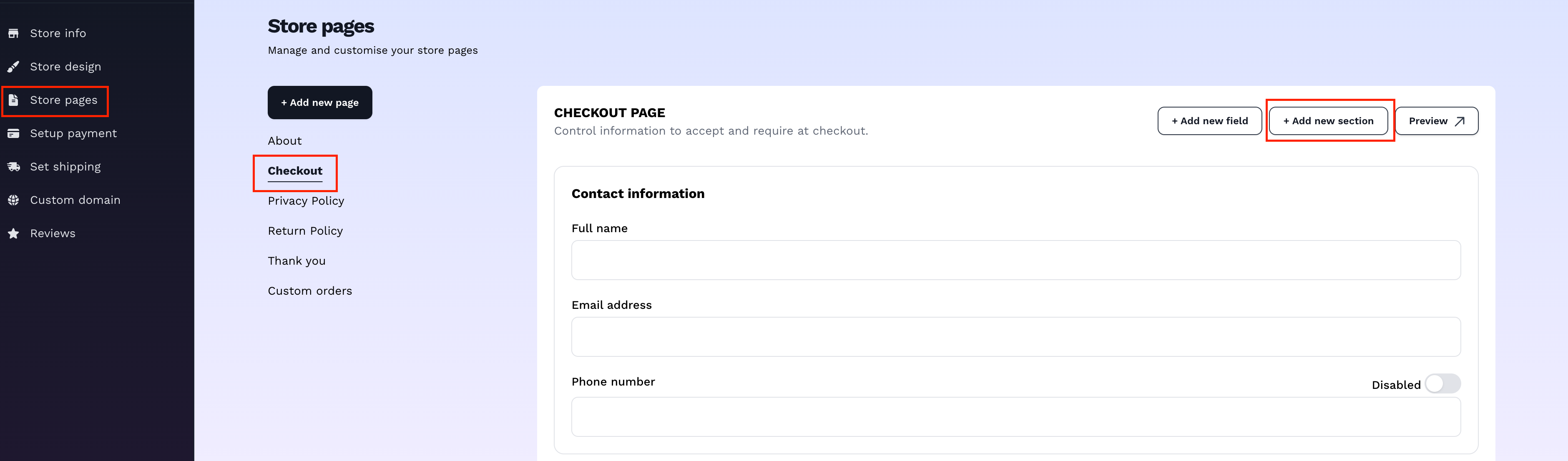
Screenshot: store pages section on Vendroad
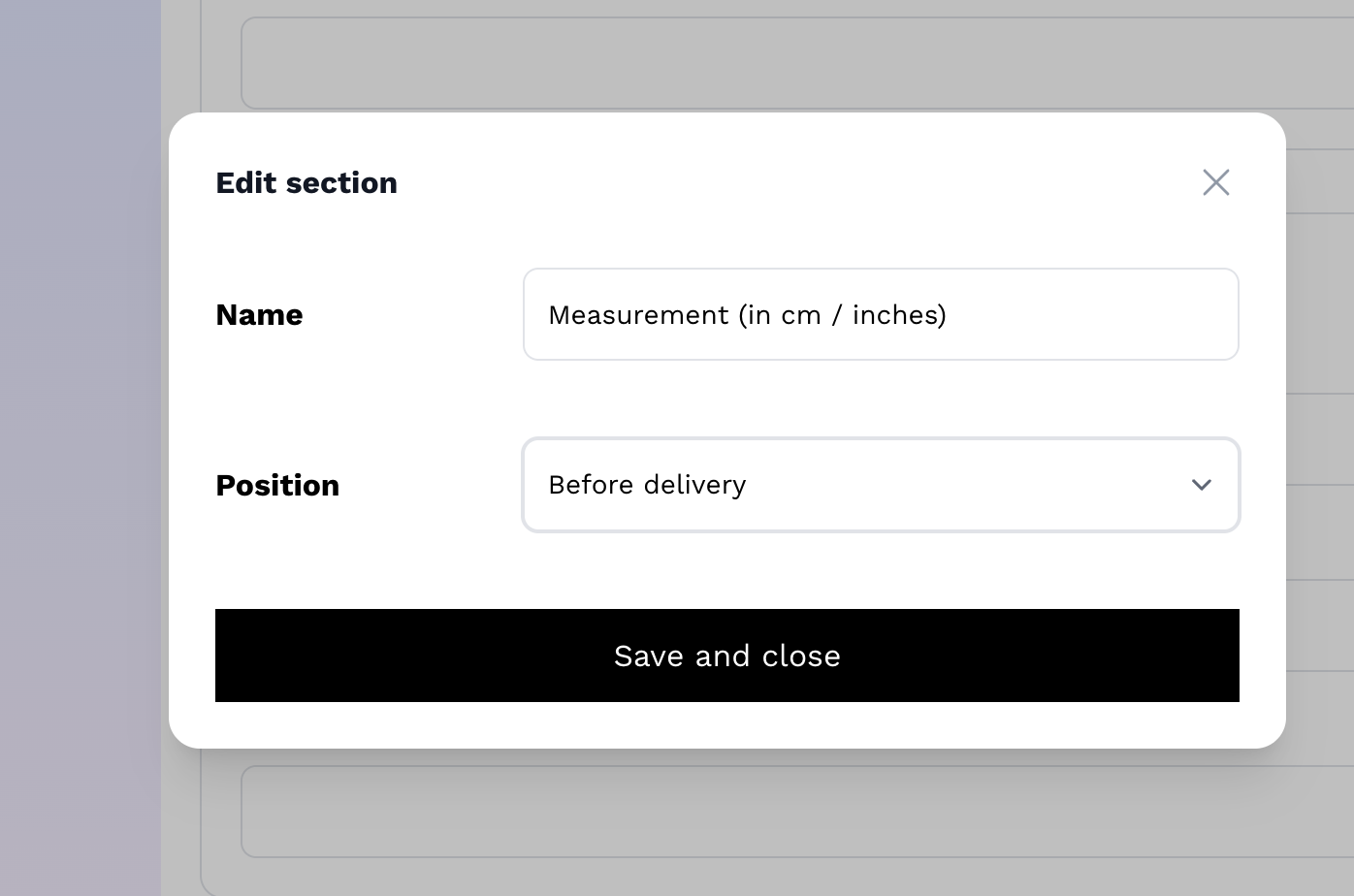
Screenshot of section creation on Vendroad
4. Create fields: Now that we have our section created, the next thing to do is to add the information we need. In the example; Hips, Waist, Bust. To do this, click on "Create new field", a modal will pop up.
From there, add the label (the name) of the field, in this case, Hips. Decide the field type - text field is appropriate for this scenario, so user can write both numbers and letters. Placeholder can also be a good idea to give users a hint of the information you need.
Do the same for all the other information you need - bust, length etc.
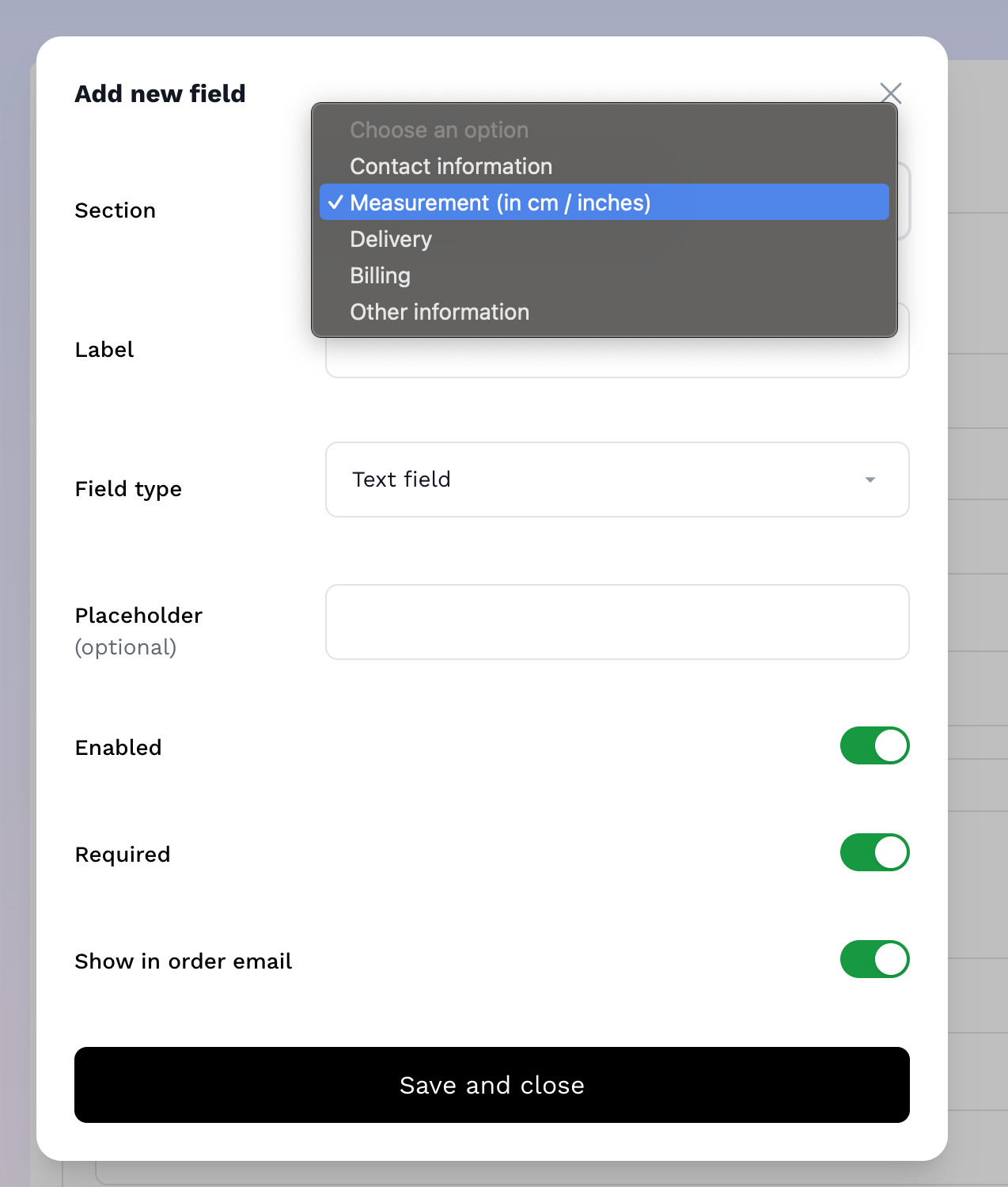
Adding new field - Make sure the field is in the section you want
5. The sections and fields will show up in checkout form: Now when users checkout, they can fill in the information you need to process the custom orders.
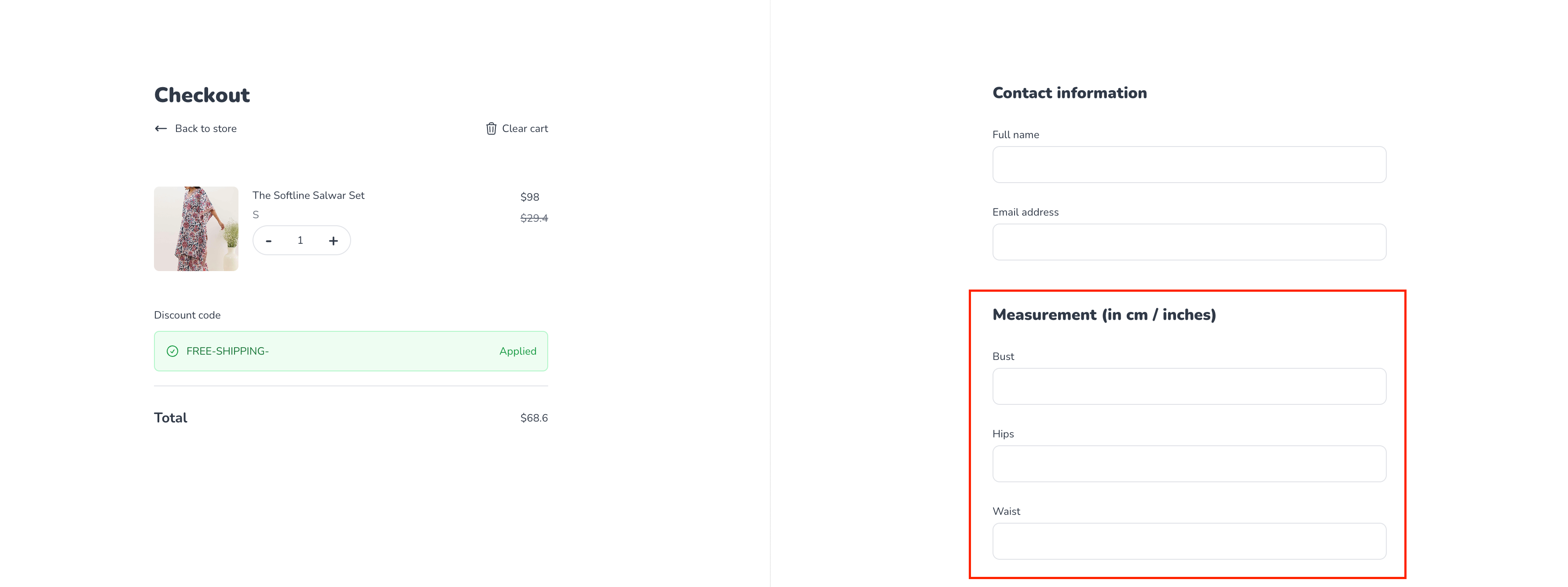
The custom fields you created now shows up in your online store checkout page
Create the online store for your business. Built for small businesses - Vendroad.com