How to Navigate Your Seller Dashboard
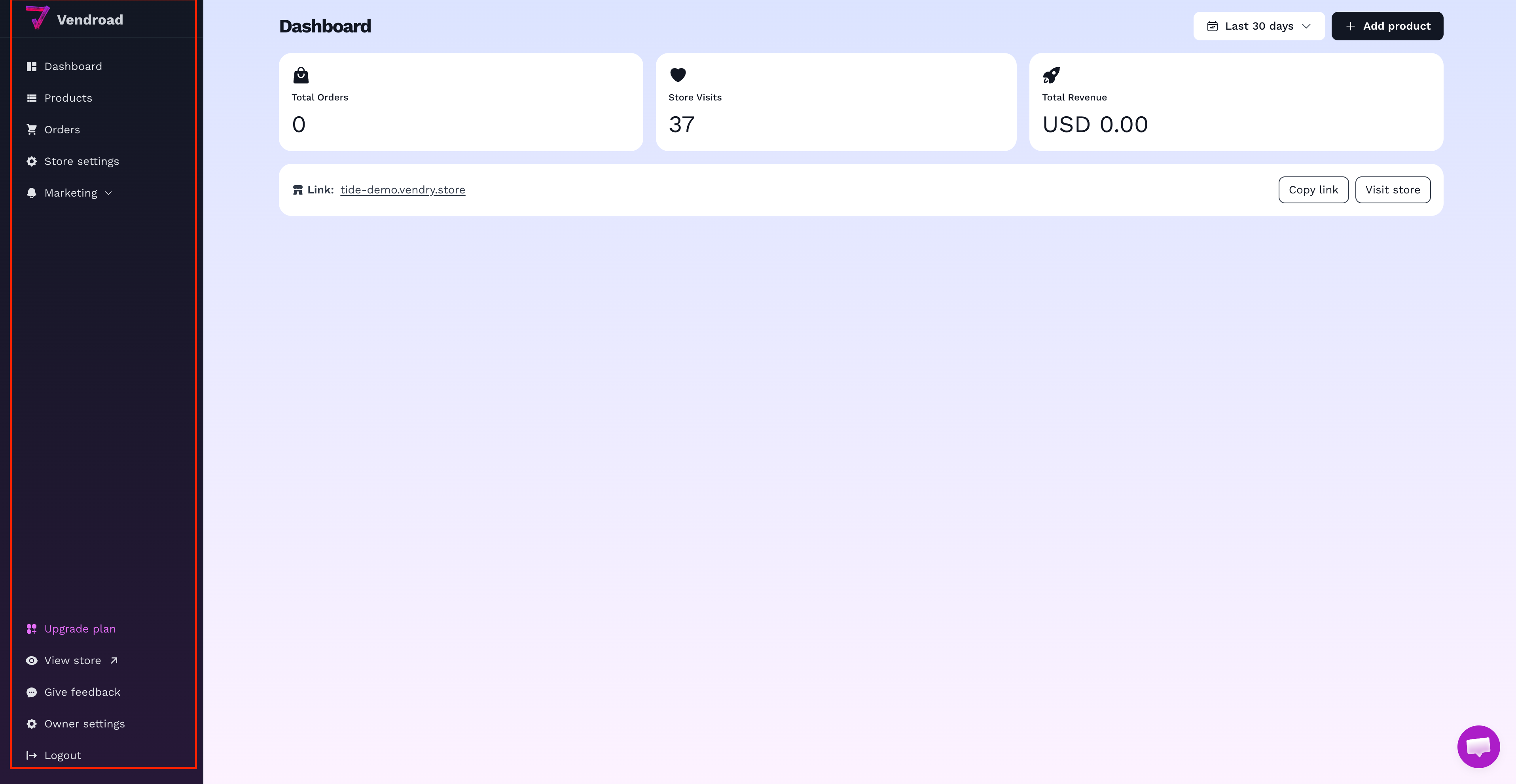
Once you log in, everything you need to run your store lives behind one dark sidebar on the left (or behind the ☰ menu on mobile). Here's what each part does.
The main menu
The main menu
- Dashboard — your home screen. Shows your order stats, revenue, and recent orders (see below).
- Products — add, edit, and manage everything you sell.
- Orders — view and fulfill orders customers have placed.
- Store settings — click this to slide open a second menu with everything related to how your store is configured:
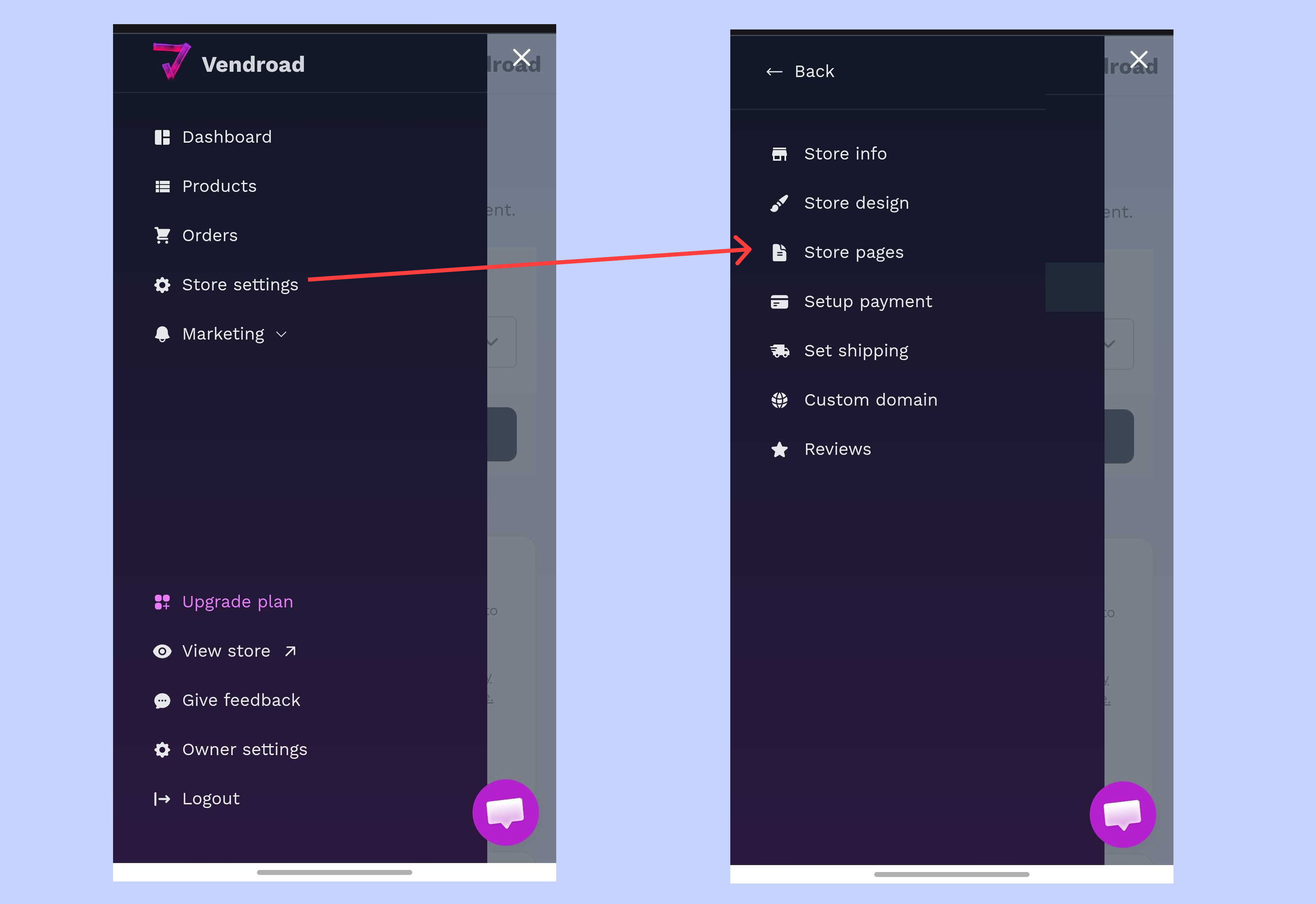
Mobile menu - for main section and settings
- Store info — your shop name, logo, contact details, and policies.
- Store design — templates and theme customization (colors, fonts, cover image).
- Store pages — your Thank You, About, Privacy Policy, Return Policy, and Checkout pages.
- Setup payment — connect payment processors such as stripe or add manual payment options.
- Set shipping — delivery locations and pickup settings.
- Custom domain — connect your own domain name.
- Reviews — turn on and moderate customer reviews.
- Marketing — click to expand:
- Discounts — create and manage discount codes.
- Track ads — connect a Facebook or Google ads pixel.
The bottom section
- Upgrade plan — manage or upgrade your subscription.
- View store — opens your live storefront in a new tab, exactly as customers see it.
- Give feedback — send feedback directly to the Vendroad team.
- Owner settings — your personal account/profile settings.
- Logout
If your store isn't published yet, you'll see a red Store offline notice near the top of the sidebar with a Go live here link that jumps straight to Store settings.
The Dashboard page itself
At the top, a duration filter lets you switch your stats between Last 7 days, Last 30 days, and All time. Next to it, an Add product button jumps straight to creating a new product.
Below that are your stat cards: total orders, revenue, and store visits for the period you selected, followed by a list of your recent orders.
Heads-up banners
Right above the page content, Vendroad will sometimes show a banner nudging you toward your next step:
- "Almost there! Your store is still offline" — until you go live.
- "Enable a payment method to start receiving orders" — once you're live but haven't connected a payment method.
- "Upgrade to customize store design" — if you're on the free plan and try to touch templates.
These aren't just noise, each one links directly to the settings page that fixes it.